

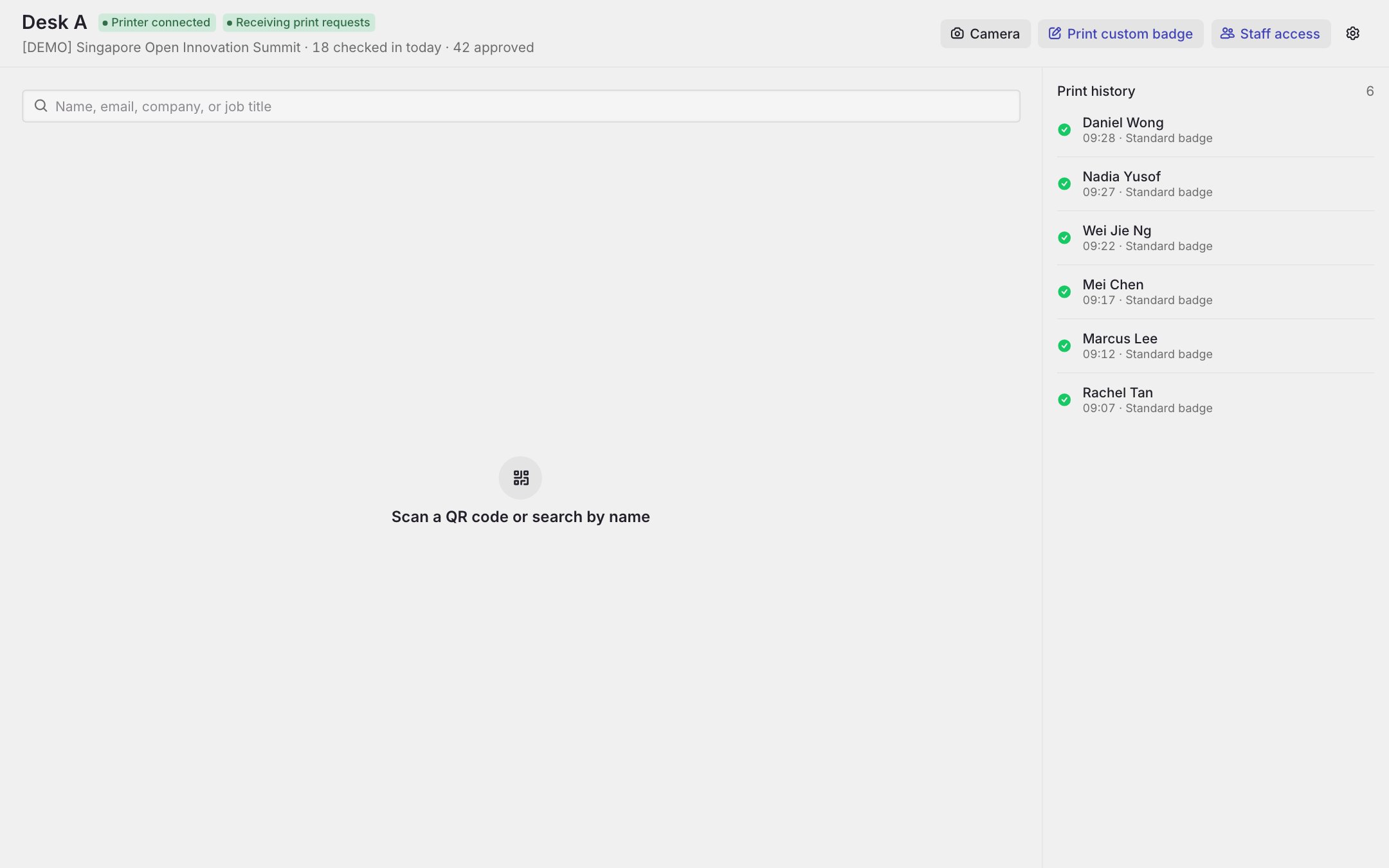
The print station screen
Station settings
Station settings in the header opens a dialog. Rows marked Zebra appear only while a Zebra printer is connected.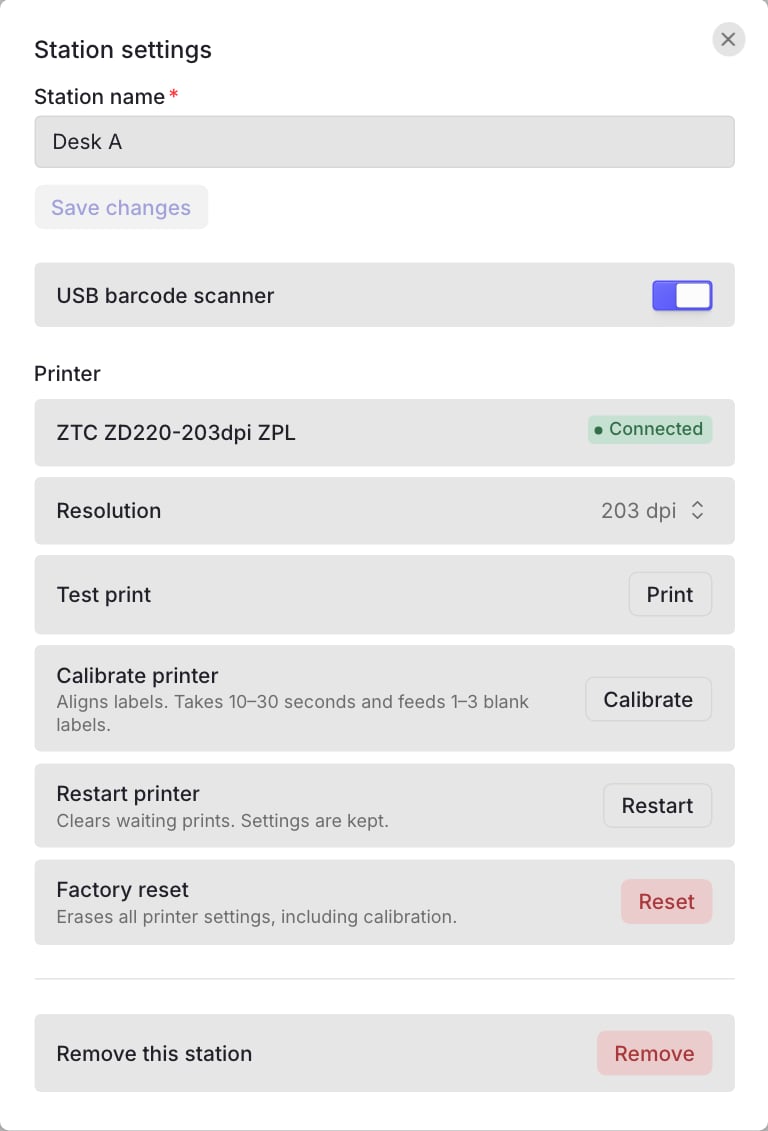
The Station settings dialog
Toasts for printer commands confirm only that the command was sent, so check the printer for the result.
The station screen
A badge that brings up the toast The badge was printed, but it wasn’t added to print history. is missing from print history and Badge prints.
Station status in the console
Below the templates on Badges in the console, the Print stations table shows the status of each station registered for this event. It’s there before the first publish and refreshes every 30 seconds until the event page ends.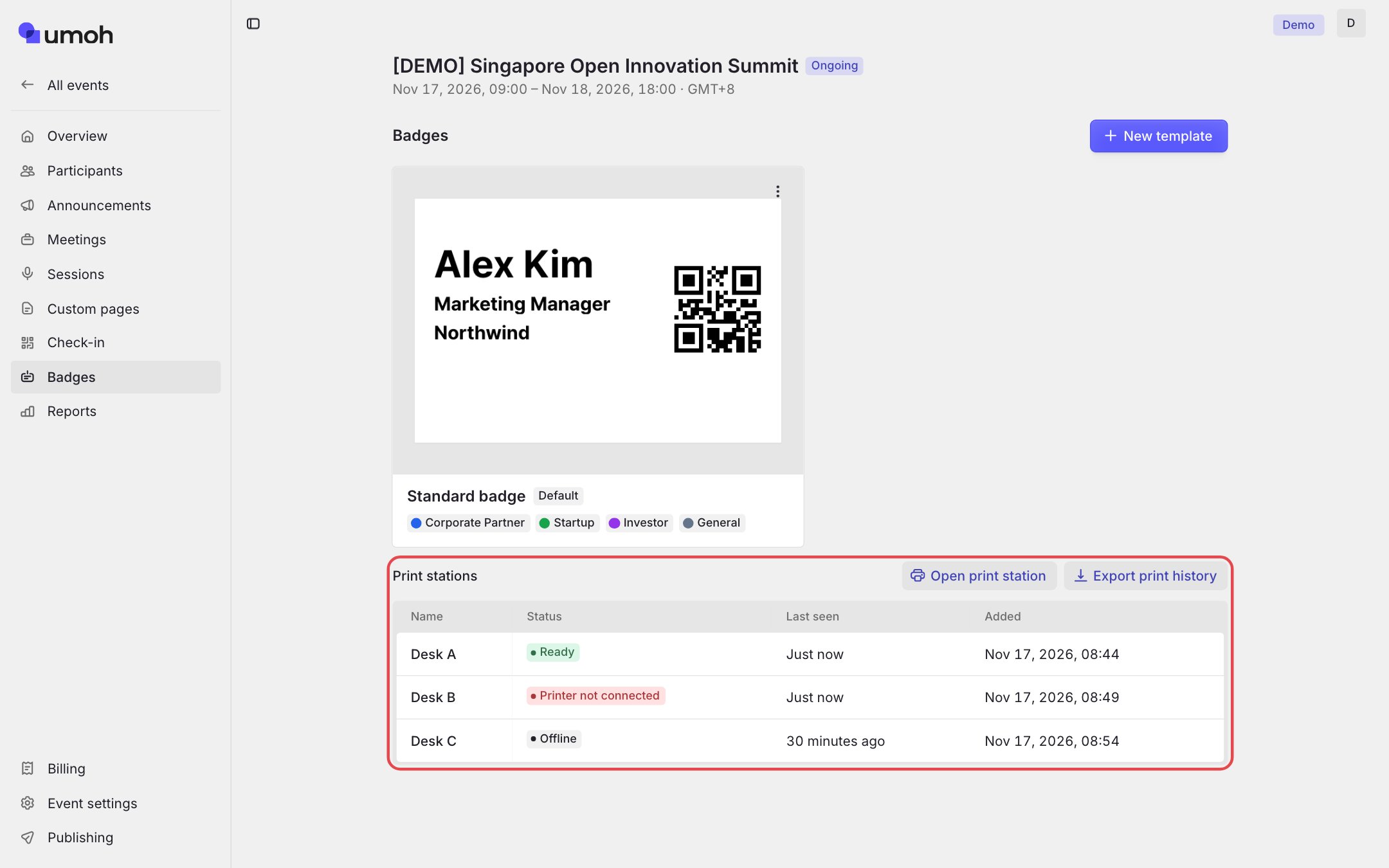
The Print stations table on the Badges page
Export print history
From the first publish, Export print history on Badges downloads every print record of the event as a CSV or Excel file. The file lists the print time, name, email, device name, print type, and printed data, oldest first. Print times are in the event time zone, and the email is blank for custom badges. Badge prints in a participant’s details counts reprints too; see Roster. For the badge printing check-ins you’re billed for, see Billing.Printers and tabs
One browser is one station.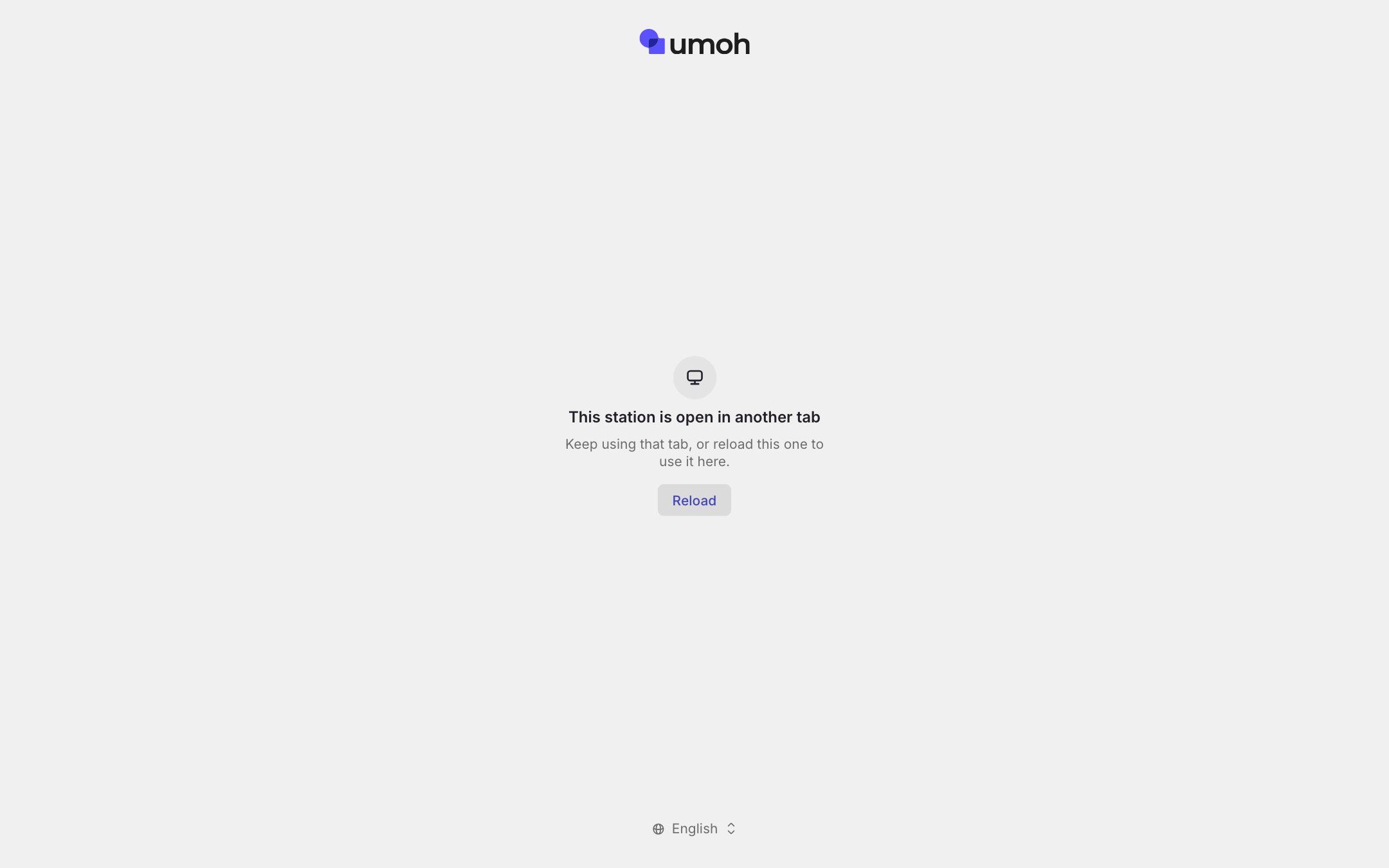
The first tab after the station opens in another tab
Print requests from staff phones
On the phone’s check-in screen, the printer button next to the event name opens the Print station sheet, where the stations that can print right now follow No printing. The button shows the selected station, or Choose station when none is selected.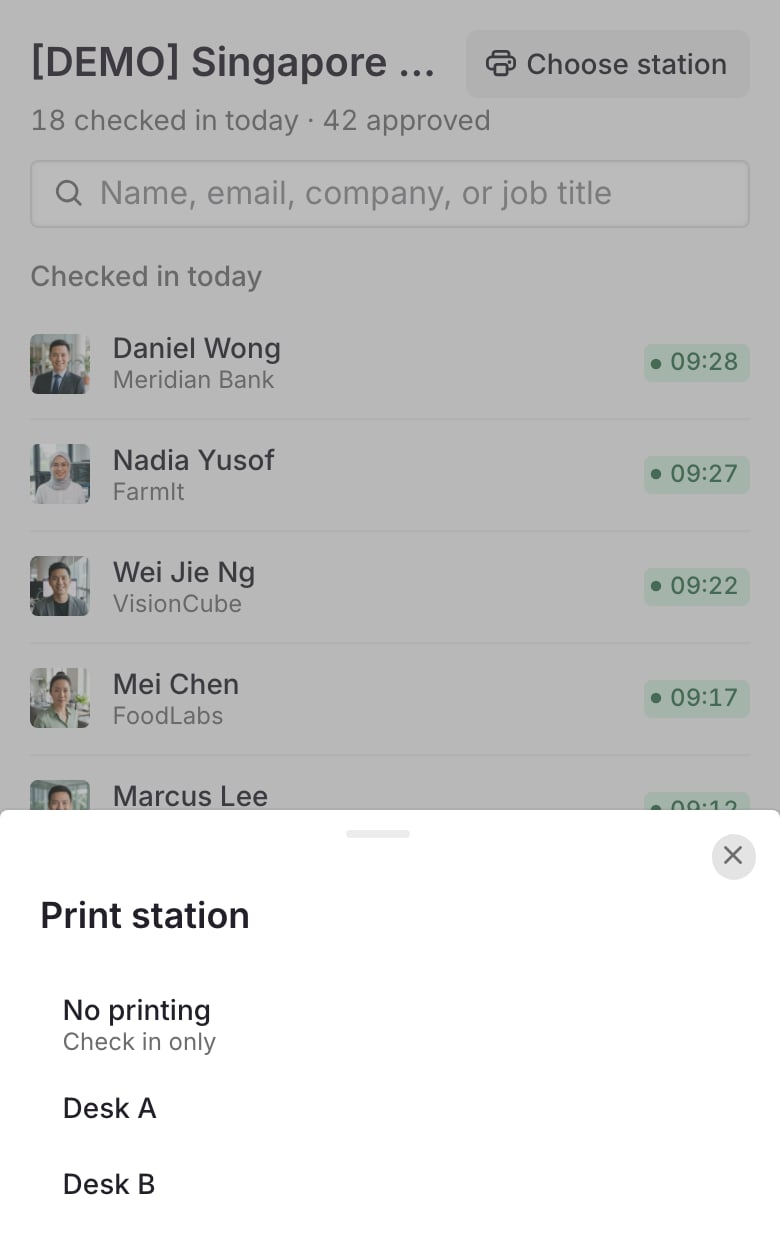
The Print station sheet on a phone