Create a badge template, test print it, and assign it to participant types.
A badge template sets what a print station prints on a badge at check-in. A participant type prints with the template assigned to it, otherwise with the default template, and without a default with the built-in Basic layout.
Any member of the organization can create and edit templates. Badges
appears in every event, whatever its plan or publish state. Test prints run in
Chrome or Edge on a computer, even before the event is published, and aren’t
counted in print history, badge prints, or billing.
1
Open the editor
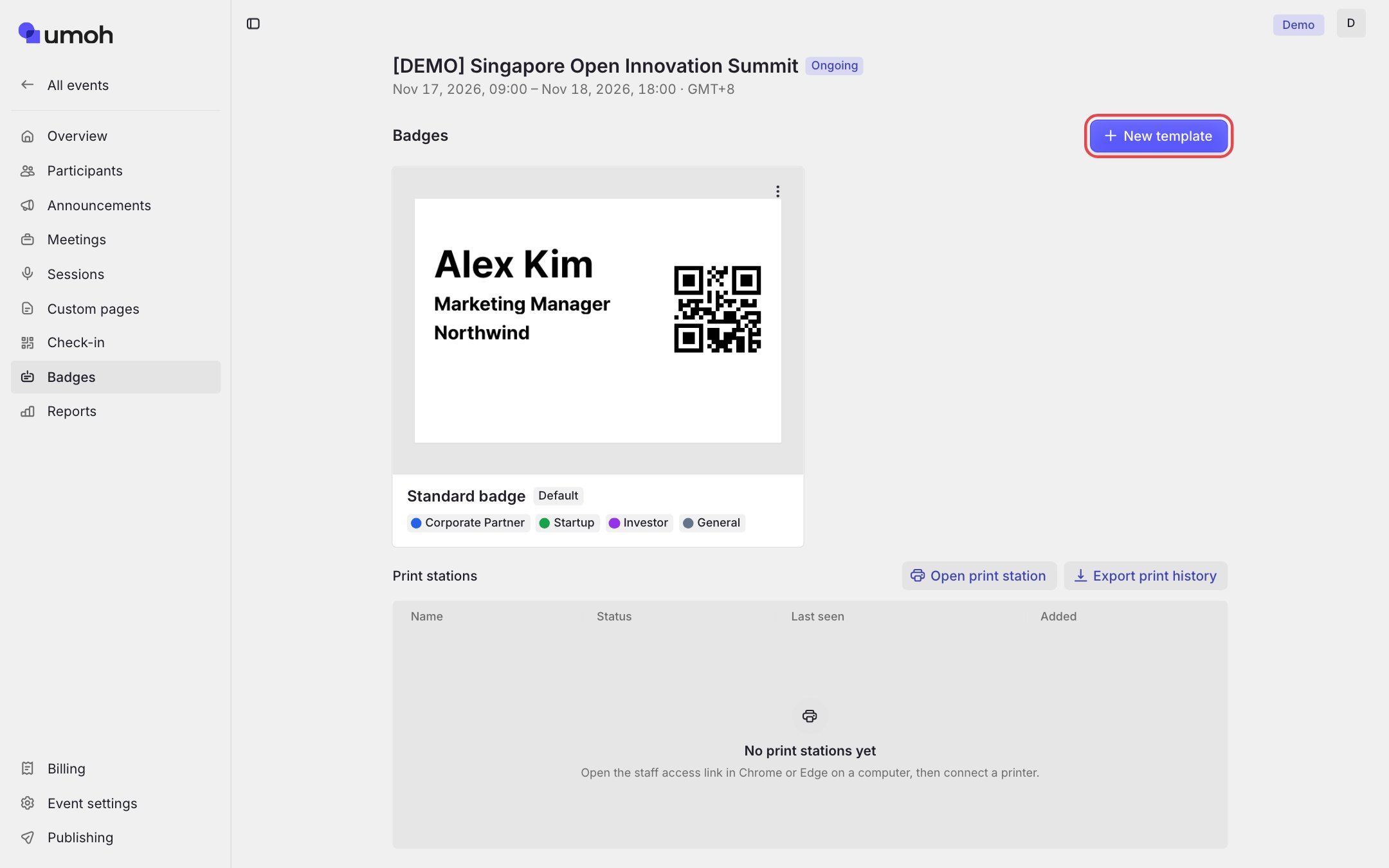
In the console, open Badges and select New template. The editor
opens with a new template.
The New template button on the Badges page
2
Name the template and set the badge size
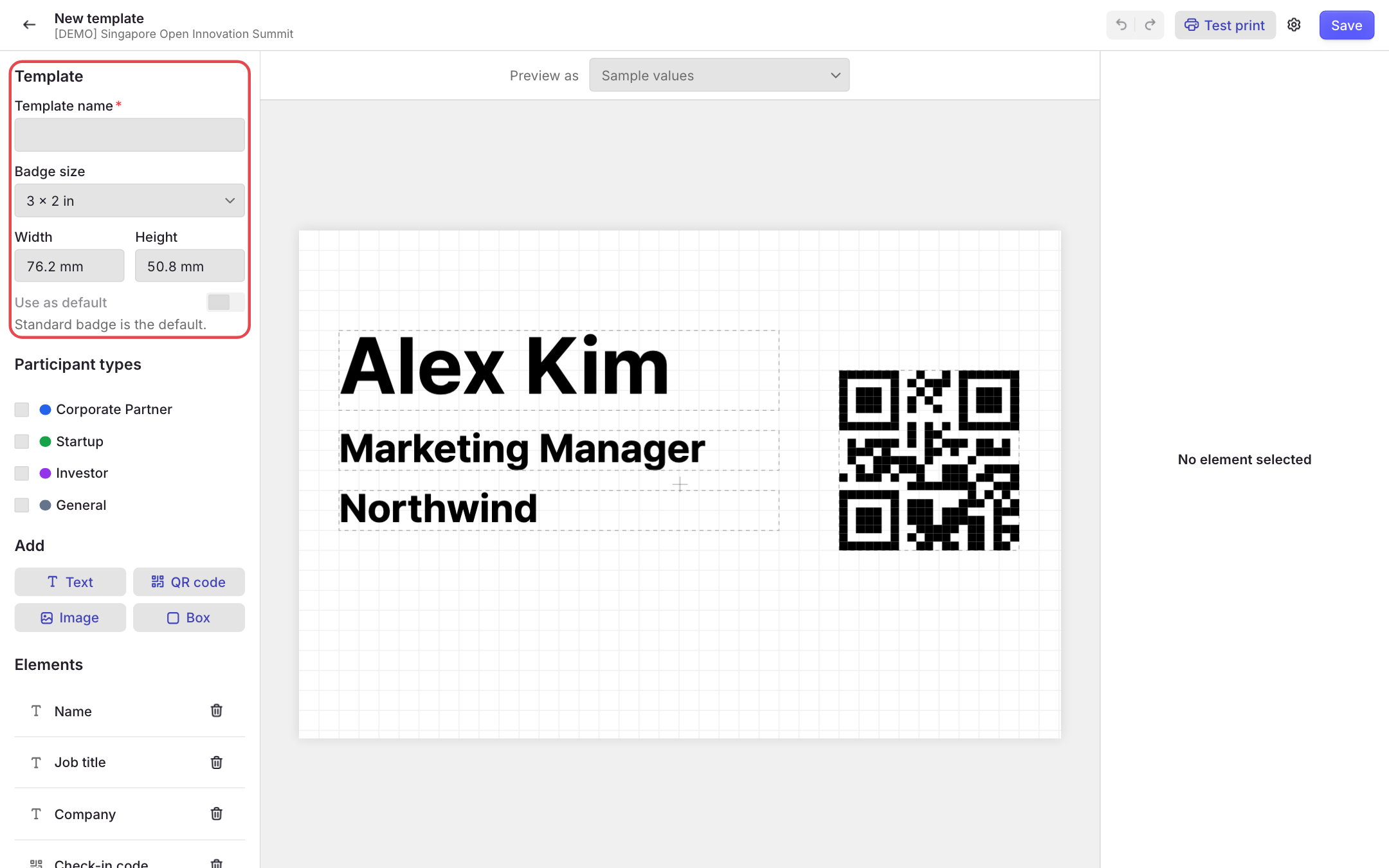
In the left panel, enter a Template name and choose a label stock size
under Badge size. For a size that isn’t listed, enter the Width and
Height in millimeters.
Template settings in the editor's left panel
3
Add elements
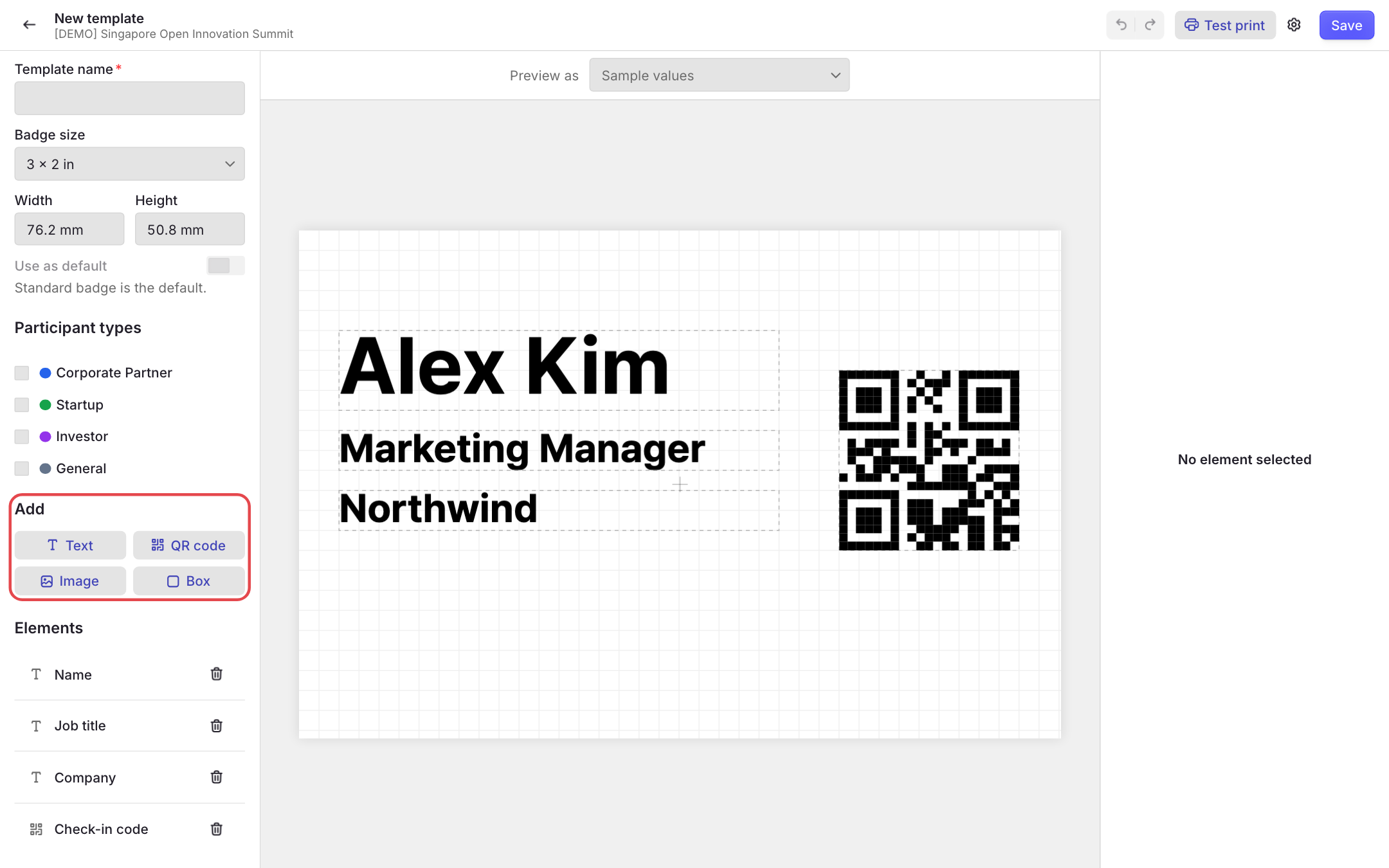
Under Add, select Text, QR code, Image, or Box. The new
element appears at the center of the badge.
The buttons that add elements in the badge editor
4
Arrange the elements
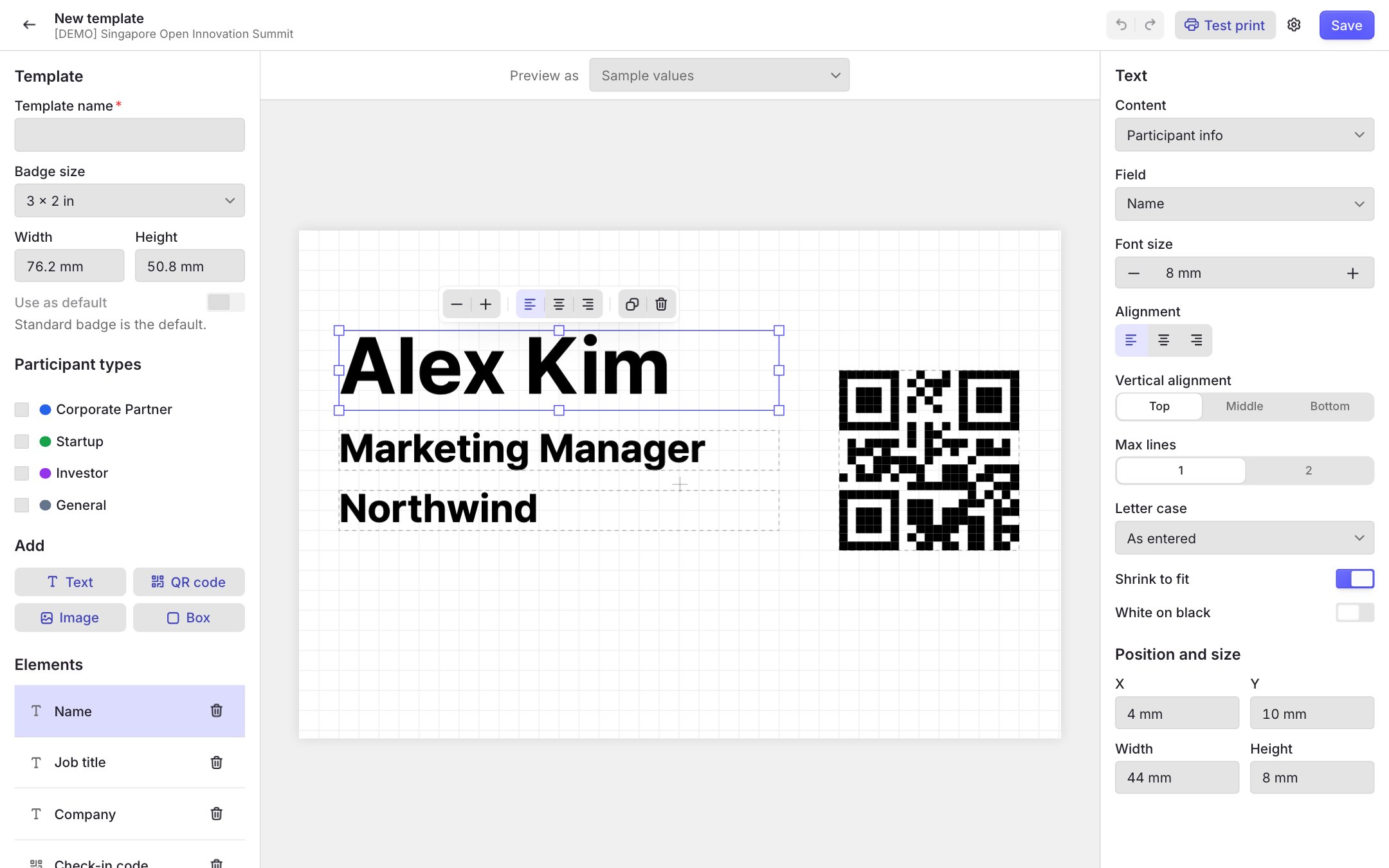
Drag elements on the canvas and resize them with the handles. Set the
selected element’s properties in the right panel.
A selected element on the canvas and its properties
5
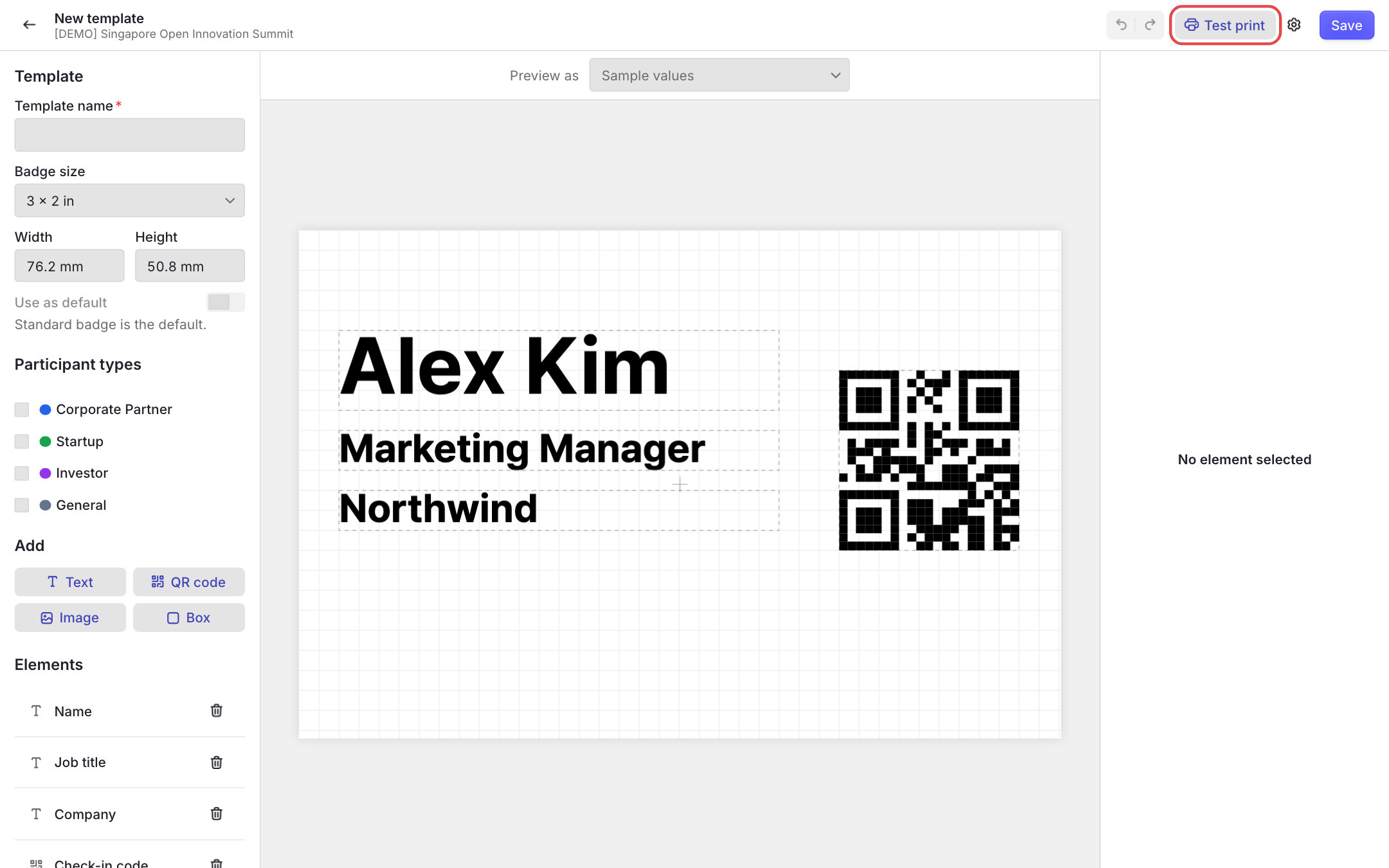
Print a test badge
Select Test print, and if the browser asks for a printer, choose your
USB printer. The badge prints as it is now, unsaved changes included, with
sample values.
The Test print button at the top of the editor
6
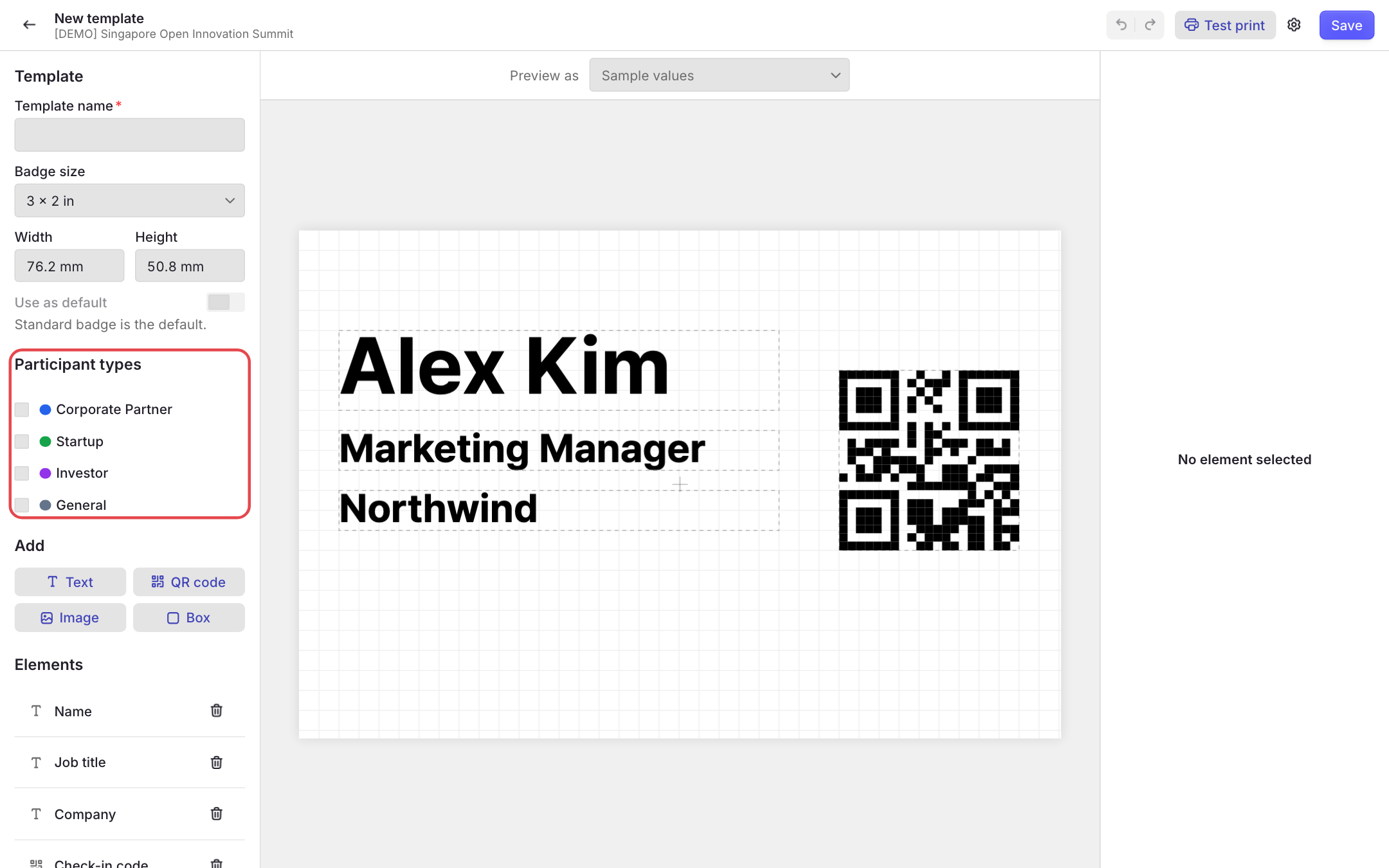
Assign participant types
Under Participant types, select the types that print with this template.
The participant types in the left panel
7
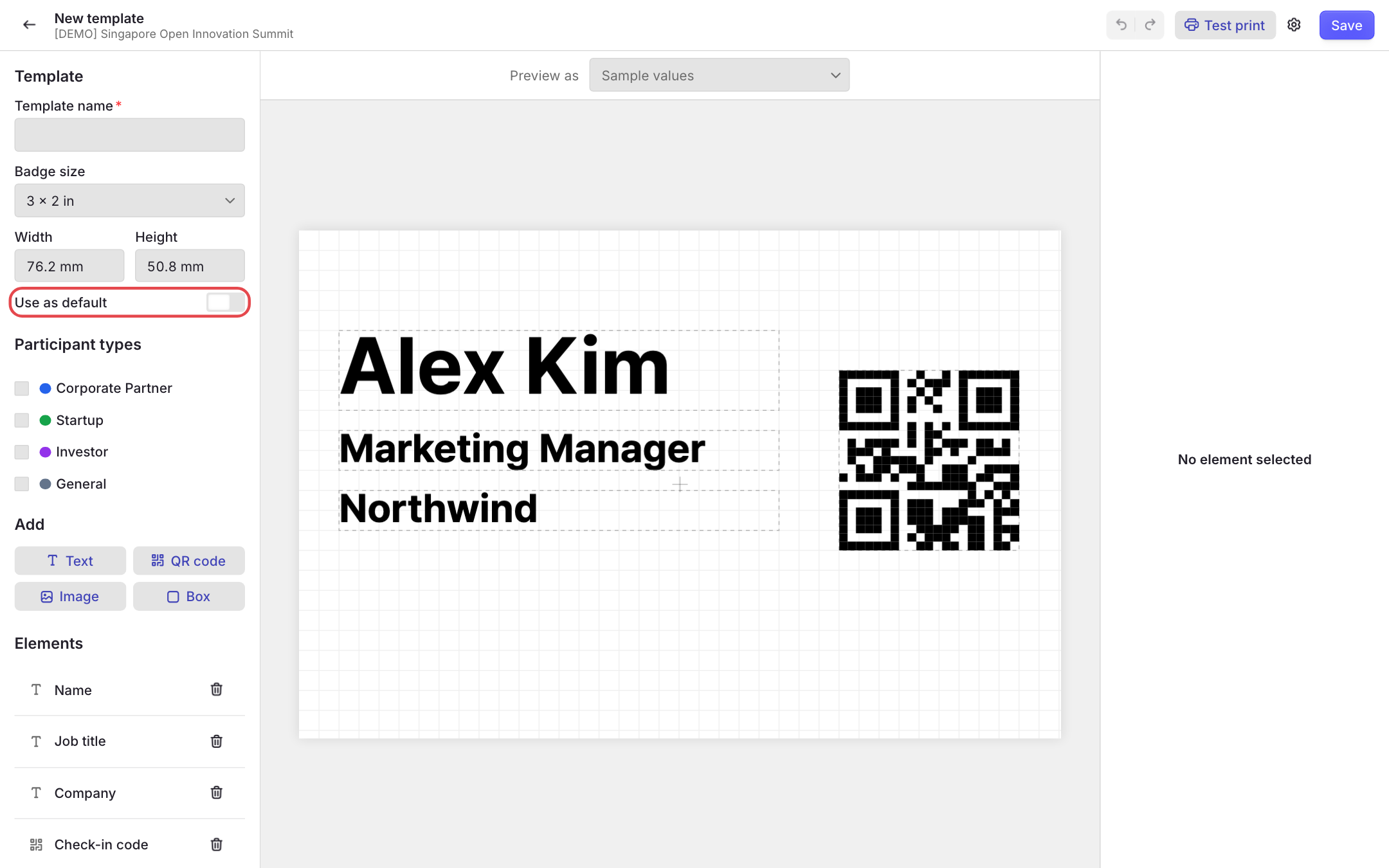
Set the default template
To make this the template for every type without one of its own, turn on
Use as default.
The Use as default switch
8
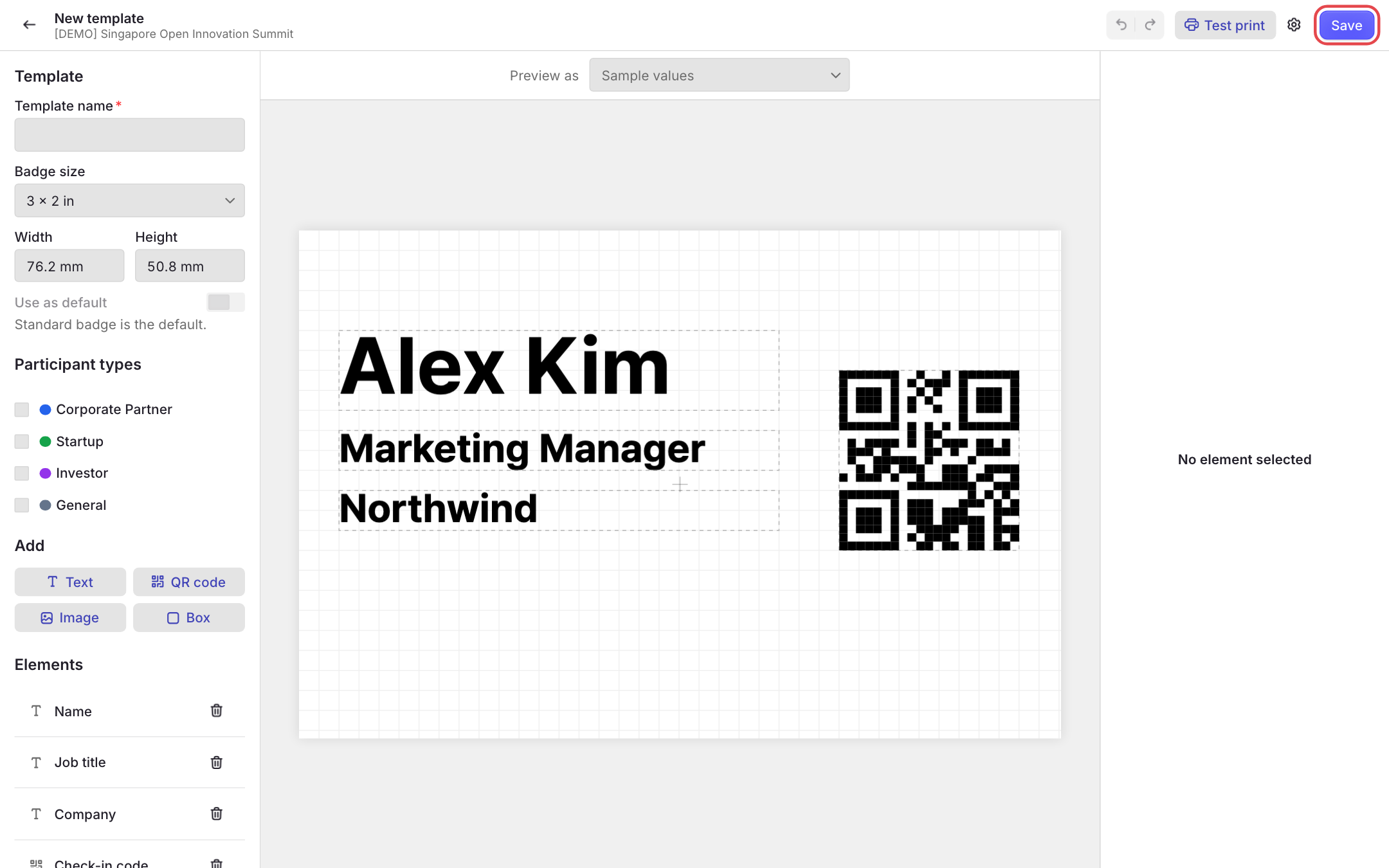
Save the template
Select Save. Back to badges in the top-left corner returns to the
list.
The Save button in the top-right corner of the editor
Element properties, canvas actions, and shortcuts are in Badge editor. The Print stations table and Export print history below the templates on Badges are covered in Print station settings and status.
Special cases
Situation
What to do
You start from the built-in layout
Select the Basic layout card, which appears while there’s no default template. It opens named Standard badge with Use as default on, and takes over from the built-in layout when you save.
Staff check in by scanning the badge
Set the QR code’s Content to Check-in code. Link and Contact card can’t be used for check-in.
You want to check a real participant’s values
Search by name in Preview as above the canvas and select the participant. Test prints use those values too. With sample values, profile answers print blank.
You disconnect the printer or adjust a Zebra printer
Select the gear button, Printer settings, next to Test print. The dialog has Disconnect, Test print, and, for Zebra printers, Resolution, Calibrate printer, Restart printer, and Factory reset, which work as in Print station settings.
A type you selected is already on another template
It moves to this template when you save.
Use as default is disabled
Another template is the default. Open that template and turn the switch off first.
You leave the editor with unsaved changes
In the Discard unsaved changes? dialog, select Keep editing or Discard.
Edit or delete a template
On a template card, select More actions, then Edit. To delete the template, select Delete and confirm.Participant types assigned to a deleted template print with the default template. Deleting the default template sends types without a template to the Basic layout. The overview’s Recent activity records who added, updated, or removed a template.
Troubleshooting
This template can't be read.
The layout was saved in another format, so the editor opens it with the
basic layout. Arrange the badge again and select Save, which replaces
the original layout. Until you save, the station doesn’t print badges for
its participant types.
Another template is already the default
Another member set a default while you were editing. Turn off Use as
default and save again, or open the other template and turn its switch off
first.
Save is disabled
Nothing has changed yet, or an image is still uploading. A new template can
be saved as it is.
Text is cut off on the badge
Widen the box, set Max lines to 2, or turn on Shrink to fit.
Another tab is using this printer
A print station tab in the same browser is using the printer. Disconnect it
in that tab or close the tab, then try again. In the other direction,
leaving the editor releases the printer so a station tab can use it.
⌘I
{"docsConfig":{"theme":"luma","$schema":"https://mintlify.com/docs.json","name":"Umoh Docs","colors":{"primary":"#5252FC","light":"#7888FF","dark":"#5252FC"},"logo":{"light":"https://mintcdn.com/umoh/jp2Ge0FpdYjqZlhi/logo/light.svg?fit=max\u0026auto=format\u0026n=jp2Ge0FpdYjqZlhi\u0026q=85\u0026s=18caaf37c96c155b5fead0bab93f1b19","dark":"https://mintcdn.com/umoh/jp2Ge0FpdYjqZlhi/logo/dark.svg?fit=max\u0026auto=format\u0026n=jp2Ge0FpdYjqZlhi\u0026q=85\u0026s=e9d6b1b5c4fd7906fa4a3954693a01db","href":"https://umoh.io"},"favicon":"https://mintcdn.com/umoh/jp2Ge0FpdYjqZlhi/favicon.svg?fit=max\u0026auto=format\u0026n=jp2Ge0FpdYjqZlhi\u0026q=85\u0026s=9a759b2b8ee975233e4edd28e079cb12","appearance":{"default":"light","strict":true},"navbar":{"primary":{"type":"button","label":"Open console","href":"https://console.umoh.io"}},"footer":{"links":[{"header":"Umoh","items":[{"label":"umoh.io","href":"https://umoh.io"}]}]},"seo":{"metatags":{"canonical":"https://docs.umoh.io","og:site_name":"Umoh Docs"},"organization":{"id":"https://umoh.io","name":"Umoh","legalName":"Splab, Inc.","url":"https://umoh.io","sameAs":["https://www.linkedin.com/showcase/umoh"]}},"fonts":{"family":"Inter"},"icons":{"library":"lucide"},"contextual":{"options":["copy","view","chatgpt","claude","mcp"],"display":"header"},"styling":{"latex":false},"navigation":{"languages":[{"language":"en","default":true,"navbar":{"primary":{"type":"button","label":"Open console","href":"https://console.umoh.io"}},"href":""},{"language":"ko","navbar":{"primary":{"type":"button","label":"콘솔 열기","href":"https://console.umoh.io"}},"href":"ko"},{"language":"ja","navbar":{"primary":{"type":"button","label":"コンソールを開く","href":"https://console.umoh.io"}},"href":"ja"}]}},"deployment":{"deploymentMetadataValue":{"subdomain":"umoh","hasAudioNarration":false,"actualSubdomain":"umoh","customDomains":["docs.umoh.io"],"gitSource":{"type":"github","owner":"team-splab","repo":"umoh-client","deployBranch":"main","contentDirectory":"apps/docs","isPrivate":true,"mountPath":"","label":"","_id":"6afc812db877bf043697f596"},"entitlements":{},"buildId":"6b041b1d6d5fca11cbfdc99d","clientVersion":"0.0.4271","searchFilterCounts":[{"language":"en","tag":"Host guide","count":35},{"language":"ja","tag":"主催者ガイド","count":35},{"language":"ko","tag":"주최자 가이드","count":35},{"language":"en","tag":"Participant guide","count":16},{"language":"ja","tag":"参加者ガイド","count":16},{"language":"ko","tag":"참가자 가이드","count":16},{"language":"en","tag":"Meetings","count":8},{"language":"ja","tag":"ミーティング","count":8},{"language":"ko","tag":"미팅","count":8},{"language":"en","tag":"Getting started","count":7},{"language":"en","tag":"Event settings","count":7},{"language":"ja","tag":"はじめに","count":7},{"language":"ja","tag":"イベント設定","count":7},{"language":"ko","tag":"시작하기","count":7},{"language":"ko","tag":"행사 설정","count":7},{"language":"en","tag":"On-site","count":6},{"language":"ja","tag":"当日運営","count":6},{"language":"ko","tag":"현장 운영","count":6},{"language":"en","tag":"Participants","count":4},{"language":"ja","tag":"参加者","count":4},{"language":"ko","tag":"참가자","count":4},{"language":"en","tag":"FAQ","count":2},{"language":"en","tag":"Organization","count":2},{"language":"en","tag":"Insights","count":2},{"language":"ja","tag":"よくある質問","count":2},{"language":"ja","tag":"組織","count":2},{"language":"ja","tag":"状況","count":2},{"language":"ko","tag":"자주 묻는 질문","count":2},{"language":"ko","tag":"조직","count":2},{"language":"ko","tag":"현황","count":2}]},"assistantConfig":{"enableAskAiButton":false,"enableStarterQuestions":false,"enableContextualStarterQuestions":false,"enableAskAiSearchBar":true},"basePath":"","hasChatPermissions":false,"hasWebMcpPermissions":false,"toggles":[{"name":"kill-isr","enabled":true,"variant":{"name":"disabled","enabled":false,"feature_enabled":true},"impressionData":false},{"name":"custom-rbac-roles","enabled":true,"variant":{"name":"disabled","enabled":false,"feature_enabled":true},"impressionData":false},{"name":"agent-mintlify-slack","enabled":true,"variant":{"name":"disabled","enabled":false,"feature_enabled":true},"impressionData":false},{"name":"agent-integrations-settings","enabled":true,"variant":{"name":"disabled","enabled":false,"feature_enabled":true},"impressionData":false},{"name":"rbac-expansion","enabled":true,"variant":{"name":"disabled","enabled":false,"feature_enabled":true},"impressionData":false},{"name":"automations-pr-grouping","enabled":true,"variant":{"name":"disabled","enabled":false,"feature_enabled":true},"impressionData":false},{"name":"custom-prefix","enabled":true,"variant":{"name":"disabled","enabled":false,"feature_enabled":true},"impressionData":false},{"name":"analytics-v7","enabled":true,"variant":{"name":"disabled","enabled":false,"feature_enabled":true},"impressionData":false},{"name":"user-flows-analytics","enabled":true,"variant":{"name":"disabled","enabled":false,"feature_enabled":true},"impressionData":false},{"name":"no-publish-flow","enabled":true,"variant":{"name":"disabled","enabled":false,"feature_enabled":true},"impressionData":false},{"name":"workos-onboarding","enabled":true,"variant":{"name":"disabled","enabled":false,"feature_enabled":true},"impressionData":false},{"name":"snapshot-serving-live","enabled":true,"variant":{"name":"disabled","enabled":false,"feature_enabled":true},"impressionData":false},{"name":"stripTemperatureMiddleware","enabled":true,"variant":{"name":"disabled","enabled":false,"feature_enabled":true},"impressionData":false},{"name":"support-platform-pylon-zendesk","enabled":true,"variant":{"name":"disabled","enabled":false,"feature_enabled":true},"impressionData":false},{"name":"snapshot-serving","enabled":true,"variant":{"name":"disabled","enabled":false,"feature_enabled":true},"impressionData":false},{"name":"instant-rollback","enabled":true,"variant":{"name":"disabled","enabled":false,"feature_enabled":true},"impressionData":false},{"name":"granular-notifications-server","enabled":true,"variant":{"name":"disabled","enabled":false,"feature_enabled":true},"impressionData":false},{"name":"granular-notifications","enabled":true,"variant":{"name":"disabled","enabled":false,"feature_enabled":true},"impressionData":false},{"name":"automations-fable","enabled":true,"variant":{"name":"disabled","enabled":false,"feature_enabled":true},"impressionData":false},{"name":"fixed-ai-action-pricing","enabled":true,"variant":{"name":"disabled","enabled":false,"feature_enabled":true},"impressionData":false},{"name":"site-roles","enabled":true,"variant":{"name":"disabled","enabled":false,"feature_enabled":true},"impressionData":false},{"name":"automation-resolve-merge-conflict","enabled":true,"variant":{"name":"disabled","enabled":false,"feature_enabled":true},"impressionData":false},{"name":"scoped-publishing","enabled":true,"variant":{"name":"disabled","enabled":false,"feature_enabled":true},"impressionData":false},{"name":"mintql","enabled":true,"variant":{"name":"disabled","enabled":false,"feature_enabled":true},"impressionData":false},{"name":"page-level-analytics","enabled":true,"variant":{"name":"disabled","enabled":false,"feature_enabled":true},"impressionData":false},{"name":"editor-version-history-v2","enabled":true,"variant":{"name":"disabled","enabled":false,"feature_enabled":true},"impressionData":false},{"name":"billing-page-v2","enabled":true,"variant":{"name":"disabled","enabled":false,"feature_enabled":true},"impressionData":false},{"name":"full-page-search","enabled":true,"variant":{"name":"disabled","enabled":false,"feature_enabled":true},"impressionData":false},{"name":"workspace-projects","enabled":true,"variant":{"name":"disabled","enabled":false,"feature_enabled":true},"impressionData":false},{"name":"assistant-v5","enabled":true,"variant":{"name":"disabled","enabled":false,"feature_enabled":true},"impressionData":false},{"name":"fork-pr-previews","enabled":true,"variant":{"name":"disabled","enabled":false,"feature_enabled":true},"impressionData":false},{"name":"revalidation-jwt","enabled":true,"variant":{"name":"disabled","enabled":false,"feature_enabled":true},"impressionData":false},{"name":"workos-sso-scim","enabled":true,"variant":{"name":"disabled","enabled":false,"feature_enabled":true},"impressionData":false},{"name":"hobby-abuse-scan","enabled":true,"variant":{"name":"disabled","enabled":false,"feature_enabled":true},"impressionData":false},{"name":"dashboard-inbox","enabled":true,"variant":{"name":"disabled","enabled":false,"feature_enabled":true},"impressionData":false},{"name":"workos-signup","enabled":true,"variant":{"name":"disabled","enabled":false,"feature_enabled":true},"impressionData":false},{"name":"turbopuffer-dual-write","enabled":true,"variant":{"name":"disabled","enabled":false,"feature_enabled":true},"impressionData":false},{"name":"workos-enabled","enabled":true,"variant":{"name":"disabled","enabled":false,"feature_enabled":true},"impressionData":false},{"name":"approve-review-flow","enabled":true,"variant":{"name":"disabled","enabled":false,"feature_enabled":true},"impressionData":false},{"name":"editor-metadata","enabled":true,"variant":{"name":"disabled","enabled":false,"feature_enabled":true},"impressionData":false},{"name":"sso-setup-deadline-banner","enabled":true,"variant":{"name":"disabled","enabled":false,"feature_enabled":true},"impressionData":false},{"name":"turbopuffer-serve","enabled":true,"variant":{"name":"disabled","enabled":false,"feature_enabled":true},"impressionData":false},{"name":"live-agents","enabled":true,"variant":{"name":"disabled","enabled":false,"feature_enabled":true},"impressionData":false},{"name":"starter-pricing","enabled":true,"variant":{"name":"treatment","enabled":true,"payload":{"type":"string","value":"treatment"},"feature_enabled":true},"impressionData":false},{"name":"llms-txt-v2","enabled":true,"variant":{"name":"disabled","enabled":false,"feature_enabled":true},"impressionData":false},{"name":"wildcard-email-auth","enabled":true,"variant":{"name":"disabled","enabled":false,"feature_enabled":true},"impressionData":false}],"googleFontsInlined":false},"customCss":[]}
{"page":{"pagePath":"host/on-site/badges","slug":"/host/on-site/badges","pageMetadata":{"title":"Design a badge template","sidebarTitle":"Badge templates","description":"Create a badge template, test print it, and assign it to participant types.","href":"/host/on-site/badges"},"description":{"compiledSource":"\"use strict\";\nconst {jsx: _jsx} = arguments[0];\nconst {useMDXComponents: _provideComponents} = arguments[0];\nfunction _createMdxContent(props) {\n const _components = {\n p: \"p\",\n ..._provideComponents(),\n ...props.components\n };\n return _jsx(_components.p, {\n children: \"Create a badge template, test print it, and assign it to participant types.\"\n });\n}\nfunction MDXContent(props = {}) {\n const {wrapper: MDXLayout} = {\n ..._provideComponents(),\n ...props.components\n };\n return MDXLayout ? _jsx(MDXLayout, {\n ...props,\n children: _jsx(_createMdxContent, {\n ...props\n })\n }) : _createMdxContent(props);\n}\nreturn {\n default: MDXContent\n};\n","frontmatter":{},"scope":{}},"pageType":"default","mdx":{"mdxSource":{"compiledSource":"\"use strict\";const{Fragment:_Fragment,jsx:_jsx,jsxs:_jsxs}=arguments[0];const{useMDXComponents:_provideComponents}=arguments[0];function _createMdxContent(props){const _components={a:`a`,p:`p`,strong:`strong`,tbody:`tbody`,td:`td`,th:`th`,thead:`thead`,tr:`tr`,..._provideComponents(),...props.components},{Accordion,AccordionGroup,Frame,Heading,Note,OptimizedImage,Step,Steps,Table}=_components;if(!Accordion)_missingMdxReference(`Accordion`,true);if(!AccordionGroup)_missingMdxReference(`AccordionGroup`,true);if(!Frame)_missingMdxReference(`Frame`,true);if(!Heading)_missingMdxReference(`Heading`,true);if(!Note)_missingMdxReference(`Note`,true);if(!OptimizedImage)_missingMdxReference(`OptimizedImage`,true);if(!Step)_missingMdxReference(`Step`,true);if(!Steps)_missingMdxReference(`Steps`,true);if(!Table)_missingMdxReference(`Table`,true);return _jsxs(_Fragment,{children:[_jsxs(_components.p,{children:[`A badge template sets what a `,_jsx(_components.a,{href:`/host/on-site/print-station`,children:`print station`}),` prints on a badge at check-in. A participant type prints with the template assigned to it, otherwise with the default template, and without a default with the built-in `,_jsx(_components.strong,{children:`Basic layout`}),`.`]}),`\n`,_jsx(Note,{children:_jsxs(_components.p,{children:[`Any member of the organization can create and edit templates. `,_jsx(_components.strong,{children:`Badges`}),`\nappears in every event, whatever its plan or publish state. Test prints run in\nChrome or Edge on a computer, even before the event is published, and aren’t\ncounted in print history, badge prints, or billing.`]})}),`\n`,_jsxs(Steps,{children:[_jsxs(Step,{title:`Open the editor`,children:[_jsxs(_components.p,{children:[`In the console, open `,_jsx(_components.strong,{children:`Badges`}),` and select `,_jsx(_components.strong,{children:`New template`}),`. The editor\nopens with a new template.`]}),_jsx(Frame,{caption:`The New template button on the Badges page`,children:_jsx(OptimizedImage,{src:`https://mintcdn.com/umoh/eslfg-t_Hs5KkNrX/images/en/console/badges-1-new.png?fit=max\u0026auto=format\u0026n=eslfg-t_Hs5KkNrX\u0026q=85\u0026s=a981ad7e49a37f521034062a37bdb87c`,alt:`The Badges page in the console with the New template button outlined`,\"data-og-width\":`2160`,width:`2160`,\"data-og-height\":`1350`,height:`1350`,\"data-path\":`images/en/console/badges-1-new.png`,\"data-optimize\":`true`,\"data-opv\":`3`,srcset:`https://mintcdn.com/umoh/eslfg-t_Hs5KkNrX/images/en/console/badges-1-new.png?w=280\u0026fit=max\u0026auto=format\u0026n=eslfg-t_Hs5KkNrX\u0026q=85\u0026s=76d171ae065b5ec5abd01b8f51af3fad 280w, https://mintcdn.com/umoh/eslfg-t_Hs5KkNrX/images/en/console/badges-1-new.png?w=560\u0026fit=max\u0026auto=format\u0026n=eslfg-t_Hs5KkNrX\u0026q=85\u0026s=6f6c8b0756f068fd73c510c3e4ed1db9 560w, https://mintcdn.com/umoh/eslfg-t_Hs5KkNrX/images/en/console/badges-1-new.png?w=840\u0026fit=max\u0026auto=format\u0026n=eslfg-t_Hs5KkNrX\u0026q=85\u0026s=f211449d8404fc1ce0389f83017a0c6a 840w, https://mintcdn.com/umoh/eslfg-t_Hs5KkNrX/images/en/console/badges-1-new.png?w=1100\u0026fit=max\u0026auto=format\u0026n=eslfg-t_Hs5KkNrX\u0026q=85\u0026s=3ef83e3e202be89f5d8752b26ae5c553 1100w, https://mintcdn.com/umoh/eslfg-t_Hs5KkNrX/images/en/console/badges-1-new.png?w=1650\u0026fit=max\u0026auto=format\u0026n=eslfg-t_Hs5KkNrX\u0026q=85\u0026s=2c47da3cf9e5f860d70bbd810f688f89 1650w, https://mintcdn.com/umoh/eslfg-t_Hs5KkNrX/images/en/console/badges-1-new.png?w=2500\u0026fit=max\u0026auto=format\u0026n=eslfg-t_Hs5KkNrX\u0026q=85\u0026s=a369b20a2f98aea0ea60b2e2a668e21d 2500w`})})]}),_jsxs(Step,{title:`Name the template and set the badge size`,children:[_jsxs(_components.p,{children:[`In the left panel, enter a `,_jsx(_components.strong,{children:`Template name`}),` and choose a label stock size\nunder `,_jsx(_components.strong,{children:`Badge size`}),`. For a size that isn’t listed, enter the `,_jsx(_components.strong,{children:`Width`}),` and\n`,_jsx(_components.strong,{children:`Height`}),` in millimeters.`]}),_jsx(Frame,{caption:`Template settings in the editor's left panel`,children:_jsx(OptimizedImage,{src:`https://mintcdn.com/umoh/eslfg-t_Hs5KkNrX/images/en/console/badges-2-name-size.png?fit=max\u0026auto=format\u0026n=eslfg-t_Hs5KkNrX\u0026q=85\u0026s=ffebc4bd0fcc13655694abd1864451b2`,alt:`The badge editor with the template settings in the left panel outlined, from the Template name and Badge size fields down to the Use as default switch`,\"data-og-width\":`2160`,width:`2160`,\"data-og-height\":`1350`,height:`1350`,\"data-path\":`images/en/console/badges-2-name-size.png`,\"data-optimize\":`true`,\"data-opv\":`3`,srcset:`https://mintcdn.com/umoh/eslfg-t_Hs5KkNrX/images/en/console/badges-2-name-size.png?w=280\u0026fit=max\u0026auto=format\u0026n=eslfg-t_Hs5KkNrX\u0026q=85\u0026s=42af7c7b8a624c70162d977bbcb8989c 280w, https://mintcdn.com/umoh/eslfg-t_Hs5KkNrX/images/en/console/badges-2-name-size.png?w=560\u0026fit=max\u0026auto=format\u0026n=eslfg-t_Hs5KkNrX\u0026q=85\u0026s=0ddda1c5305f4674af2bffbeafa2e691 560w, https://mintcdn.com/umoh/eslfg-t_Hs5KkNrX/images/en/console/badges-2-name-size.png?w=840\u0026fit=max\u0026auto=format\u0026n=eslfg-t_Hs5KkNrX\u0026q=85\u0026s=8ebc3a8581e4072b68f59a80b1f55a3d 840w, https://mintcdn.com/umoh/eslfg-t_Hs5KkNrX/images/en/console/badges-2-name-size.png?w=1100\u0026fit=max\u0026auto=format\u0026n=eslfg-t_Hs5KkNrX\u0026q=85\u0026s=d693d0be46ed58df7e54c2507a9be582 1100w, https://mintcdn.com/umoh/eslfg-t_Hs5KkNrX/images/en/console/badges-2-name-size.png?w=1650\u0026fit=max\u0026auto=format\u0026n=eslfg-t_Hs5KkNrX\u0026q=85\u0026s=5cd1265c1031cc1edce4dcfed4d78ee1 1650w, https://mintcdn.com/umoh/eslfg-t_Hs5KkNrX/images/en/console/badges-2-name-size.png?w=2500\u0026fit=max\u0026auto=format\u0026n=eslfg-t_Hs5KkNrX\u0026q=85\u0026s=0b7c5f31684f396a847f2b0bb7e5ee6f 2500w`})})]}),_jsxs(Step,{title:`Add elements`,children:[_jsxs(_components.p,{children:[`Under `,_jsx(_components.strong,{children:`Add`}),`, select `,_jsx(_components.strong,{children:`Text`}),`, `,_jsx(_components.strong,{children:`QR code`}),`, `,_jsx(_components.strong,{children:`Image`}),`, or `,_jsx(_components.strong,{children:`Box`}),`. The new\nelement appears at the center of the badge.`]}),_jsx(Frame,{caption:`The buttons that add elements in the badge editor`,children:_jsx(OptimizedImage,{src:`https://mintcdn.com/umoh/eslfg-t_Hs5KkNrX/images/en/console/badge-editor.png?fit=max\u0026auto=format\u0026n=eslfg-t_Hs5KkNrX\u0026q=85\u0026s=146ab2a241ecd42c793f831af0298a85`,alt:`The badge editor with the Text, QR code, Image, and Box buttons under Add in the left panel outlined`,\"data-og-width\":`2160`,width:`2160`,\"data-og-height\":`1350`,height:`1350`,\"data-path\":`images/en/console/badge-editor.png`,\"data-optimize\":`true`,\"data-opv\":`3`,srcset:`https://mintcdn.com/umoh/eslfg-t_Hs5KkNrX/images/en/console/badge-editor.png?w=280\u0026fit=max\u0026auto=format\u0026n=eslfg-t_Hs5KkNrX\u0026q=85\u0026s=3ec0cc545d1e896c32856cff7ae81c3f 280w, https://mintcdn.com/umoh/eslfg-t_Hs5KkNrX/images/en/console/badge-editor.png?w=560\u0026fit=max\u0026auto=format\u0026n=eslfg-t_Hs5KkNrX\u0026q=85\u0026s=b7db98d3d8c7753ab2616c7106430e21 560w, https://mintcdn.com/umoh/eslfg-t_Hs5KkNrX/images/en/console/badge-editor.png?w=840\u0026fit=max\u0026auto=format\u0026n=eslfg-t_Hs5KkNrX\u0026q=85\u0026s=605316a206f76b8eca328b81b7e1f5d9 840w, https://mintcdn.com/umoh/eslfg-t_Hs5KkNrX/images/en/console/badge-editor.png?w=1100\u0026fit=max\u0026auto=format\u0026n=eslfg-t_Hs5KkNrX\u0026q=85\u0026s=847d8638af4fbe4407d22d8e4ef1025c 1100w, https://mintcdn.com/umoh/eslfg-t_Hs5KkNrX/images/en/console/badge-editor.png?w=1650\u0026fit=max\u0026auto=format\u0026n=eslfg-t_Hs5KkNrX\u0026q=85\u0026s=8976465882163c94362e3960423b8095 1650w, https://mintcdn.com/umoh/eslfg-t_Hs5KkNrX/images/en/console/badge-editor.png?w=2500\u0026fit=max\u0026auto=format\u0026n=eslfg-t_Hs5KkNrX\u0026q=85\u0026s=b9340462152cff13c326907f84fca1f8 2500w`})})]}),_jsxs(Step,{title:`Arrange the elements`,children:[_jsx(_components.p,{children:`Drag elements on the canvas and resize them with the handles. Set the\nselected element’s properties in the right panel.`}),_jsx(Frame,{caption:`A selected element on the canvas and its properties`,children:_jsx(OptimizedImage,{src:`https://mintcdn.com/umoh/eslfg-t_Hs5KkNrX/images/en/console/badges-4-arrange.png?fit=max\u0026auto=format\u0026n=eslfg-t_Hs5KkNrX\u0026q=85\u0026s=65826b2e51f643337143ffc9fb1b77d2`,alt:`The badge editor with the name element selected. The element has resize handles and a toolbar on the canvas, and the right panel shows its text properties`,\"data-og-width\":`2160`,width:`2160`,\"data-og-height\":`1350`,height:`1350`,\"data-path\":`images/en/console/badges-4-arrange.png`,\"data-optimize\":`true`,\"data-opv\":`3`,srcset:`https://mintcdn.com/umoh/eslfg-t_Hs5KkNrX/images/en/console/badges-4-arrange.png?w=280\u0026fit=max\u0026auto=format\u0026n=eslfg-t_Hs5KkNrX\u0026q=85\u0026s=ac8876aaf1b2f74165584e9925a7fa56 280w, https://mintcdn.com/umoh/eslfg-t_Hs5KkNrX/images/en/console/badges-4-arrange.png?w=560\u0026fit=max\u0026auto=format\u0026n=eslfg-t_Hs5KkNrX\u0026q=85\u0026s=47af85d659efae3723313e46d0d4cfcb 560w, https://mintcdn.com/umoh/eslfg-t_Hs5KkNrX/images/en/console/badges-4-arrange.png?w=840\u0026fit=max\u0026auto=format\u0026n=eslfg-t_Hs5KkNrX\u0026q=85\u0026s=7f2a32b75773a02d963505157010ee00 840w, https://mintcdn.com/umoh/eslfg-t_Hs5KkNrX/images/en/console/badges-4-arrange.png?w=1100\u0026fit=max\u0026auto=format\u0026n=eslfg-t_Hs5KkNrX\u0026q=85\u0026s=09fef5f9aed6b5fa3c14c1b62de99c17 1100w, https://mintcdn.com/umoh/eslfg-t_Hs5KkNrX/images/en/console/badges-4-arrange.png?w=1650\u0026fit=max\u0026auto=format\u0026n=eslfg-t_Hs5KkNrX\u0026q=85\u0026s=1b9e05973bdee240daa5f497a94fe293 1650w, https://mintcdn.com/umoh/eslfg-t_Hs5KkNrX/images/en/console/badges-4-arrange.png?w=2500\u0026fit=max\u0026auto=format\u0026n=eslfg-t_Hs5KkNrX\u0026q=85\u0026s=8d90b50bd9a6d8f9b9dd89ffdba7bceb 2500w`})})]}),_jsxs(Step,{title:`Print a test badge`,children:[_jsxs(_components.p,{children:[`Select `,_jsx(_components.strong,{children:`Test print`}),`, and if the browser asks for a printer, choose your\nUSB printer. The badge prints as it is now, unsaved changes included, with\nsample values.`]}),_jsx(Frame,{caption:`The Test print button at the top of the editor`,children:_jsx(OptimizedImage,{src:`https://mintcdn.com/umoh/eslfg-t_Hs5KkNrX/images/en/console/badges-5-test-print.png?fit=max\u0026auto=format\u0026n=eslfg-t_Hs5KkNrX\u0026q=85\u0026s=411da19ad3b5ba33cf0df18b8fd2a0d3`,alt:`The badge editor with the Test print button in the top bar outlined`,\"data-og-width\":`2160`,width:`2160`,\"data-og-height\":`1350`,height:`1350`,\"data-path\":`images/en/console/badges-5-test-print.png`,\"data-optimize\":`true`,\"data-opv\":`3`,srcset:`https://mintcdn.com/umoh/eslfg-t_Hs5KkNrX/images/en/console/badges-5-test-print.png?w=280\u0026fit=max\u0026auto=format\u0026n=eslfg-t_Hs5KkNrX\u0026q=85\u0026s=5159eeee2e7c2cb713727bd360192d98 280w, https://mintcdn.com/umoh/eslfg-t_Hs5KkNrX/images/en/console/badges-5-test-print.png?w=560\u0026fit=max\u0026auto=format\u0026n=eslfg-t_Hs5KkNrX\u0026q=85\u0026s=dd0aa59de858131760e6aa78bbe8526b 560w, https://mintcdn.com/umoh/eslfg-t_Hs5KkNrX/images/en/console/badges-5-test-print.png?w=840\u0026fit=max\u0026auto=format\u0026n=eslfg-t_Hs5KkNrX\u0026q=85\u0026s=ebc617c0a85614151453a672e49d3fe7 840w, https://mintcdn.com/umoh/eslfg-t_Hs5KkNrX/images/en/console/badges-5-test-print.png?w=1100\u0026fit=max\u0026auto=format\u0026n=eslfg-t_Hs5KkNrX\u0026q=85\u0026s=e11d4618eee80b13d74f0ab506d85cf4 1100w, https://mintcdn.com/umoh/eslfg-t_Hs5KkNrX/images/en/console/badges-5-test-print.png?w=1650\u0026fit=max\u0026auto=format\u0026n=eslfg-t_Hs5KkNrX\u0026q=85\u0026s=2e0d03a78b42878740888f6a1b3e26e1 1650w, https://mintcdn.com/umoh/eslfg-t_Hs5KkNrX/images/en/console/badges-5-test-print.png?w=2500\u0026fit=max\u0026auto=format\u0026n=eslfg-t_Hs5KkNrX\u0026q=85\u0026s=041d1d3ec335d64d80f6cede0c4a76b6 2500w`})})]}),_jsxs(Step,{title:`Assign participant types`,children:[_jsxs(_components.p,{children:[`Under `,_jsx(_components.strong,{children:`Participant types`}),`, select the types that print with this template.`]}),_jsx(Frame,{caption:`The participant types in the left panel`,children:_jsx(OptimizedImage,{src:`https://mintcdn.com/umoh/eslfg-t_Hs5KkNrX/images/en/console/badges-6-types.png?fit=max\u0026auto=format\u0026n=eslfg-t_Hs5KkNrX\u0026q=85\u0026s=101b498d4a7eb06b3b0789114569862c`,alt:`The badge editor with the Participant types checkboxes in the left panel outlined`,\"data-og-width\":`2160`,width:`2160`,\"data-og-height\":`1350`,height:`1350`,\"data-path\":`images/en/console/badges-6-types.png`,\"data-optimize\":`true`,\"data-opv\":`3`,srcset:`https://mintcdn.com/umoh/eslfg-t_Hs5KkNrX/images/en/console/badges-6-types.png?w=280\u0026fit=max\u0026auto=format\u0026n=eslfg-t_Hs5KkNrX\u0026q=85\u0026s=8ce31a997f335a8527e1f526f2653622 280w, https://mintcdn.com/umoh/eslfg-t_Hs5KkNrX/images/en/console/badges-6-types.png?w=560\u0026fit=max\u0026auto=format\u0026n=eslfg-t_Hs5KkNrX\u0026q=85\u0026s=eddc1e890bac40c237174871e7460eb2 560w, https://mintcdn.com/umoh/eslfg-t_Hs5KkNrX/images/en/console/badges-6-types.png?w=840\u0026fit=max\u0026auto=format\u0026n=eslfg-t_Hs5KkNrX\u0026q=85\u0026s=ac519656838ba3e6a5503300a3f6c188 840w, https://mintcdn.com/umoh/eslfg-t_Hs5KkNrX/images/en/console/badges-6-types.png?w=1100\u0026fit=max\u0026auto=format\u0026n=eslfg-t_Hs5KkNrX\u0026q=85\u0026s=8c37488522993d80b48b6b1cb376316e 1100w, https://mintcdn.com/umoh/eslfg-t_Hs5KkNrX/images/en/console/badges-6-types.png?w=1650\u0026fit=max\u0026auto=format\u0026n=eslfg-t_Hs5KkNrX\u0026q=85\u0026s=fffc78a62e6a32409e9773323de9e646 1650w, https://mintcdn.com/umoh/eslfg-t_Hs5KkNrX/images/en/console/badges-6-types.png?w=2500\u0026fit=max\u0026auto=format\u0026n=eslfg-t_Hs5KkNrX\u0026q=85\u0026s=9bdd0031c7a0f005bb316ed865ed168e 2500w`})})]}),_jsxs(Step,{title:`Set the default template`,children:[_jsxs(_components.p,{children:[`To make this the template for every type without one of its own, turn on\n`,_jsx(_components.strong,{children:`Use as default`}),`.`]}),_jsx(Frame,{caption:`The Use as default switch`,children:_jsx(OptimizedImage,{src:`https://mintcdn.com/umoh/eslfg-t_Hs5KkNrX/images/en/console/badges-7-default.png?fit=max\u0026auto=format\u0026n=eslfg-t_Hs5KkNrX\u0026q=85\u0026s=9ee17306b7c0a422d87483db8b336288`,alt:`The badge editor with the Use as default switch in the left panel outlined`,\"data-og-width\":`2160`,width:`2160`,\"data-og-height\":`1350`,height:`1350`,\"data-path\":`images/en/console/badges-7-default.png`,\"data-optimize\":`true`,\"data-opv\":`3`,srcset:`https://mintcdn.com/umoh/eslfg-t_Hs5KkNrX/images/en/console/badges-7-default.png?w=280\u0026fit=max\u0026auto=format\u0026n=eslfg-t_Hs5KkNrX\u0026q=85\u0026s=4c77cc338cc37d95077b36143b37c6ea 280w, https://mintcdn.com/umoh/eslfg-t_Hs5KkNrX/images/en/console/badges-7-default.png?w=560\u0026fit=max\u0026auto=format\u0026n=eslfg-t_Hs5KkNrX\u0026q=85\u0026s=29442a4c14f2cd6460263360bd7ba2eb 560w, https://mintcdn.com/umoh/eslfg-t_Hs5KkNrX/images/en/console/badges-7-default.png?w=840\u0026fit=max\u0026auto=format\u0026n=eslfg-t_Hs5KkNrX\u0026q=85\u0026s=e0f24df2b48ef49bfad0bf72db246d08 840w, https://mintcdn.com/umoh/eslfg-t_Hs5KkNrX/images/en/console/badges-7-default.png?w=1100\u0026fit=max\u0026auto=format\u0026n=eslfg-t_Hs5KkNrX\u0026q=85\u0026s=87a9690081e1514e26e4ca2f5e5f5e36 1100w, https://mintcdn.com/umoh/eslfg-t_Hs5KkNrX/images/en/console/badges-7-default.png?w=1650\u0026fit=max\u0026auto=format\u0026n=eslfg-t_Hs5KkNrX\u0026q=85\u0026s=54e1ab1aaf44cf91e70ae22cfee72044 1650w, https://mintcdn.com/umoh/eslfg-t_Hs5KkNrX/images/en/console/badges-7-default.png?w=2500\u0026fit=max\u0026auto=format\u0026n=eslfg-t_Hs5KkNrX\u0026q=85\u0026s=294ddca79b78e3c0b7e450557e9d8b25 2500w`})})]}),_jsxs(Step,{title:`Save the template`,children:[_jsxs(_components.p,{children:[`Select `,_jsx(_components.strong,{children:`Save`}),`. `,_jsx(_components.strong,{children:`Back to badges`}),` in the top-left corner returns to the\nlist.`]}),_jsx(Frame,{caption:`The Save button in the top-right corner of the editor`,children:_jsx(OptimizedImage,{src:`https://mintcdn.com/umoh/eslfg-t_Hs5KkNrX/images/en/console/badges-8-save.png?fit=max\u0026auto=format\u0026n=eslfg-t_Hs5KkNrX\u0026q=85\u0026s=1891c8ba7bc0bde557358ea71946b199`,alt:`The badge editor with the Save button in the top-right corner outlined`,\"data-og-width\":`2160`,width:`2160`,\"data-og-height\":`1350`,height:`1350`,\"data-path\":`images/en/console/badges-8-save.png`,\"data-optimize\":`true`,\"data-opv\":`3`,srcset:`https://mintcdn.com/umoh/eslfg-t_Hs5KkNrX/images/en/console/badges-8-save.png?w=280\u0026fit=max\u0026auto=format\u0026n=eslfg-t_Hs5KkNrX\u0026q=85\u0026s=72a524696bca7c3b44fd1923c1a87ea1 280w, https://mintcdn.com/umoh/eslfg-t_Hs5KkNrX/images/en/console/badges-8-save.png?w=560\u0026fit=max\u0026auto=format\u0026n=eslfg-t_Hs5KkNrX\u0026q=85\u0026s=081bd78fe387f83e3228fca18c553028 560w, https://mintcdn.com/umoh/eslfg-t_Hs5KkNrX/images/en/console/badges-8-save.png?w=840\u0026fit=max\u0026auto=format\u0026n=eslfg-t_Hs5KkNrX\u0026q=85\u0026s=0df2302b6c948f105e27164aefe83bf5 840w, https://mintcdn.com/umoh/eslfg-t_Hs5KkNrX/images/en/console/badges-8-save.png?w=1100\u0026fit=max\u0026auto=format\u0026n=eslfg-t_Hs5KkNrX\u0026q=85\u0026s=c0c37bae90c949119eb4a84aad5287f6 1100w, https://mintcdn.com/umoh/eslfg-t_Hs5KkNrX/images/en/console/badges-8-save.png?w=1650\u0026fit=max\u0026auto=format\u0026n=eslfg-t_Hs5KkNrX\u0026q=85\u0026s=faf716105b23198afb9379723118c841 1650w, https://mintcdn.com/umoh/eslfg-t_Hs5KkNrX/images/en/console/badges-8-save.png?w=2500\u0026fit=max\u0026auto=format\u0026n=eslfg-t_Hs5KkNrX\u0026q=85\u0026s=f116f4c1223bd7e0faaf56c24b5dbaa6 2500w`})})]})]}),`\n`,_jsxs(_components.p,{children:[`Element properties, canvas actions, and shortcuts are in `,_jsx(_components.a,{href:`/host/on-site/badge-editor`,children:`Badge editor`}),`. The `,_jsx(_components.strong,{children:`Print stations`}),` table and `,_jsx(_components.strong,{children:`Export print history`}),` below the templates on `,_jsx(_components.strong,{children:`Badges`}),` are covered in `,_jsx(_components.a,{href:`/host/on-site/print-station-settings`,children:`Print station settings and status`}),`.`]}),`\n`,_jsx(Heading,{level:`2`,id:`special-cases`,children:`Special cases`}),`\n`,_jsxs(Table,{children:[_jsx(_components.thead,{children:_jsxs(_components.tr,{children:[_jsx(_components.th,{children:`Situation`}),_jsx(_components.th,{children:`What to do`})]})}),_jsxs(_components.tbody,{children:[_jsxs(_components.tr,{children:[_jsx(_components.td,{children:`You start from the built-in layout`}),_jsxs(_components.td,{children:[`Select the `,_jsx(_components.strong,{children:`Basic layout`}),` card, which appears while there’s no default template. It opens named `,_jsx(_components.strong,{children:`Standard badge`}),` with `,_jsx(_components.strong,{children:`Use as default`}),` on, and takes over from the built-in layout when you save.`]})]}),_jsxs(_components.tr,{children:[_jsx(_components.td,{children:`Staff check in by scanning the badge`}),_jsxs(_components.td,{children:[`Set the QR code’s `,_jsx(_components.strong,{children:`Content`}),` to `,_jsx(_components.strong,{children:`Check-in code`}),`. `,_jsx(_components.strong,{children:`Link`}),` and `,_jsx(_components.strong,{children:`Contact card`}),` can’t be used for check-in.`]})]}),_jsxs(_components.tr,{children:[_jsx(_components.td,{children:`You want to check a real participant’s values`}),_jsxs(_components.td,{children:[`Search by name in `,_jsx(_components.strong,{children:`Preview as`}),` above the canvas and select the participant. Test prints use those values too. With sample values, profile answers print blank.`]})]}),_jsxs(_components.tr,{children:[_jsx(_components.td,{children:`You disconnect the printer or adjust a Zebra printer`}),_jsxs(_components.td,{children:[`Select the gear button, `,_jsx(_components.strong,{children:`Printer settings`}),`, next to `,_jsx(_components.strong,{children:`Test print`}),`. The dialog has `,_jsx(_components.strong,{children:`Disconnect`}),`, `,_jsx(_components.strong,{children:`Test print`}),`, and, for Zebra printers, `,_jsx(_components.strong,{children:`Resolution`}),`, `,_jsx(_components.strong,{children:`Calibrate printer`}),`, `,_jsx(_components.strong,{children:`Restart printer`}),`, and `,_jsx(_components.strong,{children:`Factory reset`}),`, which work as in `,_jsx(_components.a,{href:`/host/on-site/print-station-settings`,children:`Print station settings`}),`.`]})]}),_jsxs(_components.tr,{children:[_jsx(_components.td,{children:`The printer won’t open on Windows`}),_jsxs(_components.td,{children:[`See `,_jsx(_components.a,{href:`/host/on-site/printer-windows`,children:`Windows printer driver`}),`.`]})]}),_jsxs(_components.tr,{children:[_jsx(_components.td,{children:`A type you selected is already on another template`}),_jsx(_components.td,{children:`It moves to this template when you save.`})]}),_jsxs(_components.tr,{children:[_jsxs(_components.td,{children:[_jsx(_components.strong,{children:`Use as default`}),` is disabled`]}),_jsx(_components.td,{children:`Another template is the default. Open that template and turn the switch off first.`})]}),_jsxs(_components.tr,{children:[_jsx(_components.td,{children:`You leave the editor with unsaved changes`}),_jsxs(_components.td,{children:[`In the `,_jsx(_components.strong,{children:`Discard unsaved changes?`}),` dialog, select `,_jsx(_components.strong,{children:`Keep editing`}),` or `,_jsx(_components.strong,{children:`Discard`}),`.`]})]})]})]}),`\n`,_jsx(Heading,{level:`2`,id:`edit-or-delete-a-template`,children:`Edit or delete a template`}),`\n`,_jsxs(_components.p,{children:[`On a template card, select `,_jsx(_components.strong,{children:`More actions`}),`, then `,_jsx(_components.strong,{children:`Edit`}),`. To delete the template, select `,_jsx(_components.strong,{children:`Delete`}),` and confirm.`]}),`\n`,_jsxs(_components.p,{children:[`Participant types assigned to a deleted template print with the default template. Deleting the default template sends types without a template to the `,_jsx(_components.strong,{children:`Basic layout`}),`. The overview’s `,_jsx(_components.strong,{children:`Recent activity`}),` records who added, updated, or removed a template.`]}),`\n`,_jsx(Heading,{level:`2`,id:`troubleshooting`,children:`Troubleshooting`}),`\n`,_jsxs(AccordionGroup,{children:[_jsx(Accordion,{title:`This template can't be read.`,id:`this-template-cant-be-read`,children:_jsxs(_components.p,{children:[`The layout was saved in another format, so the editor opens it with the\nbasic layout. Arrange the badge again and select `,_jsx(_components.strong,{children:`Save`}),`, which replaces\nthe original layout. Until you save, the station doesn’t print badges for\nits participant types.`]})}),_jsx(Accordion,{title:`Another template is already the default`,id:`another-template-is-already-the-default`,children:_jsxs(_components.p,{children:[`Another member set a default while you were editing. Turn off `,_jsx(_components.strong,{children:`Use as\ndefault`}),` and save again, or open the other template and turn its switch off\nfirst.`]})}),_jsx(Accordion,{title:`Save is disabled`,id:`save-is-disabled`,children:_jsx(_components.p,{children:`Nothing has changed yet, or an image is still uploading. A new template can\nbe saved as it is.`})}),_jsx(Accordion,{title:`Text is cut off on the badge`,id:`text-is-cut-off-on-the-badge`,children:_jsxs(_components.p,{children:[`Widen the box, set `,_jsx(_components.strong,{children:`Max lines`}),` to 2, or turn on `,_jsx(_components.strong,{children:`Shrink to fit`}),`.`]})}),_jsx(Accordion,{title:`Another tab is using this printer`,id:`another-tab-is-using-this-printer`,children:_jsx(_components.p,{children:`A print station tab in the same browser is using the printer. Disconnect it\nin that tab or close the tab, then try again. In the other direction,\nleaving the editor releases the printer so a station tab can use it.`})})]})]})}function MDXContent(props={}){const{wrapper:MDXLayout}={..._provideComponents(),...props.components};return MDXLayout?_jsx(MDXLayout,{...props,children:_jsx(_createMdxContent,{...props})}):_createMdxContent(props)}return{default:MDXContent};function _missingMdxReference(id,component){throw new Error(`Expected `+(component?`component`:`object`)+\" `\"+id+\"` to be defined: you likely forgot to import, pass, or provide it.\")}","frontmatter":{},"scope":{"config":{},"pageMetadata":{"title":"Design a badge template","sidebarTitle":"Badge templates","description":"Create a badge template, test print it, and assign it to participant types.","href":"/host/on-site/badges"}}},"mdxSourceWithNoJs":null},"mdxExtracts":{"tableOfContents":[{"title":"Special cases","slug":"special-cases","depth":2,"children":[]},{"title":"Edit or delete a template","slug":"edit-or-delete-a-template","depth":2,"children":[]},{"title":"Troubleshooting","slug":"troubleshooting","depth":2,"children":[]}],"codeExamples":{}},"jsLinks":[],"subdomain":"umoh","siteName":"Umoh Docs","title":"Design a badge template - Umoh Docs","navMaps":{"firstHrefInVersion":{},"firstHrefInLanguage":{"en":{"href":"/host/on-site/badges","matchLevel":0},"ko":{"href":"/ko/host/on-site/badges","matchLevel":1},"ja":{"href":"/ja/host/on-site/badges","matchLevel":1}}},"lastModified":"2026-11-17T16:01:13.151Z","originalFileLocation":"host/on-site/badges.mdx","locale":"en"},"headHtml":"\u003cscript data-mint-head>(function(){var d=document.documentElement,p=\"light\";if(!p){try{p=localStorage.getItem(\"isDarkMode\")}catch(e){}if(p==='true')p='dark';else if(p==='false')p='light';if(p!=='light'\u0026\u0026p!=='dark'\u0026\u0026p!=='system')p=\"light\"}var r=p==='system'?(matchMedia(\"(prefers-color-scheme: dark)\").matches?'dark':'light'):p;d.classList.remove(r==='dark'?'light':'dark');d.classList.add(r);d.setAttribute(\"data-theme-preference\",p)})();\u003c/script>\u003cmeta data-mint-head name=\"description\" content=\"Create a badge template, test print it, and assign it to participant types.\">\u003cmeta data-mint-head name=\"application-name\" content=\"Umoh Docs\">\u003cmeta data-mint-head name=\"generator\" content=\"Mintlify\">\u003clink data-mint-head rel=\"icon\" type=\"image/png\" sizes=\"192x192\" href=\"/mintlify-assets/_mintlify/favicons/umoh/p1VSzsRqqAJ2N7cU/_generated/favicon/android-chrome-192x192.png\" media=\"(prefers-color-scheme: light)\">\u003clink data-mint-head rel=\"apple-touch-icon\" type=\"image/png\" sizes=\"180x180\" href=\"/mintlify-assets/_mintlify/favicons/umoh/p1VSzsRqqAJ2N7cU/_generated/favicon/apple-touch-icon.png\">\u003clink data-mint-head rel=\"icon\" type=\"image/png\" sizes=\"16x16\" href=\"/mintlify-assets/_mintlify/favicons/umoh/p1VSzsRqqAJ2N7cU/_generated/favicon/favicon-16x16.png\" media=\"(prefers-color-scheme: light)\">\u003clink data-mint-head rel=\"icon\" type=\"image/png\" sizes=\"32x32\" href=\"/mintlify-assets/_mintlify/favicons/umoh/p1VSzsRqqAJ2N7cU/_generated/favicon/favicon-32x32.png\" media=\"(prefers-color-scheme: light)\">\u003clink data-mint-head rel=\"shortcut icon\" type=\"image/x-icon\" href=\"/mintlify-assets/_mintlify/favicons/umoh/p1VSzsRqqAJ2N7cU/_generated/favicon/favicon.ico\" media=\"(prefers-color-scheme: light)\">\u003clink data-mint-head rel=\"icon\" type=\"image/png\" sizes=\"192x192\" href=\"/mintlify-assets/_mintlify/favicons/umoh/p1VSzsRqqAJ2N7cU/_generated/favicon-dark/android-chrome-192x192.png\" media=\"(prefers-color-scheme: dark)\">\u003clink data-mint-head rel=\"icon\" type=\"image/png\" sizes=\"16x16\" href=\"/mintlify-assets/_mintlify/favicons/umoh/p1VSzsRqqAJ2N7cU/_generated/favicon-dark/favicon-16x16.png\" media=\"(prefers-color-scheme: dark)\">\u003clink data-mint-head rel=\"icon\" type=\"image/png\" sizes=\"32x32\" href=\"/mintlify-assets/_mintlify/favicons/umoh/p1VSzsRqqAJ2N7cU/_generated/favicon-dark/favicon-32x32.png\" media=\"(prefers-color-scheme: dark)\">\u003clink data-mint-head rel=\"shortcut icon\" type=\"image/x-icon\" href=\"/mintlify-assets/_mintlify/favicons/umoh/p1VSzsRqqAJ2N7cU/_generated/favicon-dark/favicon.ico\" media=\"(prefers-color-scheme: dark)\">\u003cmeta data-mint-head property=\"og:title\" content=\"Design a badge template - Umoh Docs\">\u003cmeta data-mint-head property=\"og:description\" content=\"Create a badge template, test print it, and assign it to participant types.\">\u003cmeta data-mint-head property=\"og:site_name\" content=\"Umoh Docs\">\u003cmeta data-mint-head property=\"og:url\" content=\"https://docs.umoh.io/host/on-site/badges\">\u003cmeta data-mint-head property=\"og:type\" content=\"website\">\u003cmeta data-mint-head property=\"og:image\" content=\"https://umoh.mintlify.site/_mintlify/api/og/v2?division=On-site\u0026amp;title=Design+a+badge+template\u0026amp;description=Create+a+badge+template%2C+test+print+it%2C+and+assign+it+to+participant+types.\u0026amp;theme=52fa3f785130f97df9f87943\u0026amp;signature=0bfa537bf0360fad8e4cae21024b0702646d2d209c803852815a725846134e98\">\u003cmeta data-mint-head property=\"og:image:width\" content=\"1200\">\u003cmeta data-mint-head property=\"og:image:height\" content=\"630\">\u003cmeta data-mint-head name=\"twitter:card\" content=\"summary_large_image\">\u003cmeta data-mint-head name=\"twitter:title\" content=\"Design a badge template - Umoh Docs\">\u003cmeta data-mint-head name=\"twitter:description\" content=\"Create a badge template, test print it, and assign it to participant types.\">\u003cmeta data-mint-head name=\"twitter:image\" content=\"https://umoh.mintlify.site/_mintlify/api/og/v2?division=On-site\u0026amp;title=Design+a+badge+template\u0026amp;description=Create+a+badge+template%2C+test+print+it%2C+and+assign+it+to+participant+types.\u0026amp;theme=52fa3f785130f97df9f87943\u0026amp;signature=0bfa537bf0360fad8e4cae21024b0702646d2d209c803852815a725846134e98\">\u003cmeta data-mint-head name=\"twitter:image:width\" content=\"1200\">\u003cmeta data-mint-head name=\"twitter:image:height\" content=\"630\">\u003cmeta data-mint-head name=\"msapplication-config\" content=\"/mintlify-assets/_mintlify/favicons/umoh/p1VSzsRqqAJ2N7cU/_generated/favicon/browserconfig.xml\">\u003cmeta data-mint-head name=\"apple-mobile-web-app-title\" content=\"Umoh Docs\">\u003cmeta data-mint-head name=\"msapplication-TileColor\" content=\"#5252FC\">\u003clink data-mint-head rel=\"canonical\" href=\"https://docs.umoh.io/host/on-site/badges\">\u003clink data-mint-head rel=\"alternate\" type=\"application/xml\" href=\"/sitemap.xml\">\u003clink data-mint-head rel=\"alternate\" type=\"text/markdown\" href=\"/host/on-site/badges.md\">\u003clink data-mint-head rel=\"alternate\" hreflang=\"en\" href=\"https://docs.umoh.io/host/on-site/badges\">\u003clink data-mint-head rel=\"alternate\" hreflang=\"ko\" href=\"https://docs.umoh.io/ko/host/on-site/badges\">\u003clink data-mint-head rel=\"alternate\" hreflang=\"ja\" href=\"https://docs.umoh.io/ja/host/on-site/badges\">\u003clink data-mint-head rel=\"alternate\" hreflang=\"x-default\" href=\"https://docs.umoh.io/host/on-site/badges\">\u003cscript data-mint-head type=\"application/ld+json\">{\"@context\":\"https://schema.org\",\"@graph\":[{\"@type\":\"Organization\",\"@id\":\"https://umoh.io\",\"name\":\"Umoh\",\"legalName\":\"Splab, Inc.\",\"url\":\"https://umoh.io\",\"logo\":{\"@type\":\"ImageObject\",\"url\":\"https://mintcdn.com/umoh/jp2Ge0FpdYjqZlhi/logo/light.svg?fit=max\u0026auto=format\u0026n=jp2Ge0FpdYjqZlhi\u0026q=85\u0026s=18caaf37c96c155b5fead0bab93f1b19\"},\"sameAs\":[\"https://www.linkedin.com/showcase/umoh\"]},{\"@type\":\"WebSite\",\"@id\":\"https://docs.umoh.io#website\",\"name\":\"Umoh Docs\",\"url\":\"https://docs.umoh.io\",\"publisher\":{\"@id\":\"https://umoh.io\"}},{\"@type\":\"WebPage\",\"@id\":\"https://docs.umoh.io/host/on-site/badges#webpage\",\"url\":\"https://docs.umoh.io/host/on-site/badges\",\"name\":\"Design a badge template\",\"description\":\"Create a badge template, test print it, and assign it to participant types.\",\"dateModified\":\"2026-11-17T16:01:13.151Z\",\"isPartOf\":{\"@id\":\"https://docs.umoh.io#website\"},\"breadcrumb\":{\"@id\":\"https://docs.umoh.io/host/on-site/badges#breadcrumb\"}},{\"@type\":\"BreadcrumbList\",\"@id\":\"https://docs.umoh.io/host/on-site/badges#breadcrumb\",\"itemListElement\":[{\"@type\":\"ListItem\",\"position\":1,\"name\":\"On-site\",\"item\":\"https://docs.umoh.io/host/on-site/check-in\"},{\"@type\":\"ListItem\",\"position\":2,\"name\":\"Design a badge template\",\"item\":\"https://docs.umoh.io/host/on-site/badges\"}]},{\"@type\":[\"Article\",\"TechArticle\"],\"@id\":\"https://docs.umoh.io/host/on-site/badges#article\",\"headline\":\"Design a badge template\",\"name\":\"Design a badge template\",\"description\":\"Create a badge template, test print it, and assign it to participant types.\",\"url\":\"https://docs.umoh.io/host/on-site/badges\",\"mainEntityOfPage\":{\"@id\":\"https://docs.umoh.io/host/on-site/badges#webpage\"},\"dateModified\":\"2026-11-17T16:01:13.151Z\",\"publisher\":{\"@id\":\"https://umoh.io\"},\"isPartOf\":{\"@id\":\"https://docs.umoh.io#website\"}}]}\u003c/script>\u003cscript data-mint-head type=\"application/ld+json\">{\"@context\":\"https://schema.org\",\"@type\":\"WebSite\",\"name\":\"Umoh Docs\",\"publisher\":{\"@type\":\"Organization\",\"name\":\"Umoh\"},\"provider\":{\"@type\":\"Organization\",\"name\":\"Mintlify\",\"url\":\"https://mintlify.com\"}}\u003c/script>","agentPointerHref":"/host/on-site/badges.md","siteName":"Umoh Docs","nav":{"global":null,"languages":[{"language":"en","default":true,"navbar":{"primary":{"type":"button","label":"Open console","href":"https://console.umoh.io"}},"tabs":[{"tab":"Host guide","groups":[{"group":"Getting started","pages":[{"title":"Umoh Docs","href":""},{"title":"Publish your first event","href":"/host/quickstart"},{"title":"Event lifecycle","href":"/host/concepts/event-lifecycle"},{"title":"Plans: Chat and Meet \u0026 AI","href":"/host/concepts/plans"}]},{"group":"Event settings","pages":[{"title":"Basic info","href":"/host/settings/basic-info"},{"title":"Participant types and rules","href":"/host/settings/participant-types"},{"title":"Profile fields","href":"/host/settings/profile-fields"},{"title":"Registration","href":"/host/settings/registration"},{"title":"Meeting rules","href":"/host/settings/meeting-rules"},{"title":"Meeting locations","href":"/host/settings/meeting-locations"},{"title":"Notifications","href":"/host/settings/notifications"}]},{"group":"Participants","pages":[{"title":"Roster","href":"/host/participants/roster"},{"title":"Add and import participants","href":"/host/participants/import"},{"title":"Send invitations","href":"/host/participants/invitations"},{"title":"Approve registrations","href":"/host/participants/approval"}]},{"group":"Publishing","pages":[{"title":"Publish the event page","href":"/host/publishing/publish"},{"title":"Add a payment method","href":"/host/publishing/payment-method"}]},{"group":"Meetings","pages":[{"title":"How meetings work","href":"/host/meetings/how-meetings-work"},{"title":"Meeting list","href":"/host/meetings/list"},{"title":"Assign meetings on the schedule","sidebarTitle":"Schedule and direct assignment","href":"/host/meetings/schedule"}]},{"group":"Sessions","pages":[{"title":"Add sessions and speakers","sidebarTitle":"Sessions and speakers","href":"/host/sessions"}]},{"group":"Custom pages","pages":[{"title":"Create custom pages","sidebarTitle":"Custom pages","href":"/host/custom-pages"}]},{"group":"On-site","pages":[{"title":"Check in participants","sidebarTitle":"Check-in","description":"Share the staff link and check participants in from a phone.","href":"/host/on-site/check-in"},{"title":"Design a badge template","sidebarTitle":"Badge templates","href":"/host/on-site/badges"},{"title":"Badge editor","description":"Look up element properties, canvas actions, and keyboard shortcuts in the badge editor.","href":"/host/on-site/badge-editor"},{"title":"Set up a print station","sidebarTitle":"Print station","href":"/host/on-site/print-station"},{"title":"Print station settings and status","href":"/host/on-site/print-station-settings"},{"title":"Replace the printer driver on Windows","sidebarTitle":"Windows printer driver","href":"/host/on-site/printer-windows"}]},{"group":"Communication","pages":[{"title":"Send announcements","href":"/host/announcements"}]},{"group":"Insights","pages":[{"title":"Overview","href":"/host/overview"},{"title":"Reports","href":"/host/reports"}]},{"group":"Billing","pages":[{"title":"Billing","href":"/host/billing"}]},{"group":"Organization","pages":[{"title":"Invite members and set roles","sidebarTitle":"Members and roles","href":"/host/organization/members"},{"title":"Organization and account settings","href":"/host/organization/settings"}]},{"group":"FAQ","pages":[{"title":"FAQ","href":"/host/faq"}]}]},{"tab":"Participant guide","pages":[{"title":"Participant guide","href":"/participant/join"}]}]},{"language":"ko","navbar":{"primary":{"type":"button","label":"콘솔 열기","href":"https://console.umoh.io"}},"pages":[{"title":"ko","href":"/ko/host/on-site/badges"}]},{"language":"ja","navbar":{"primary":{"type":"button","label":"コンソールを開く","href":"https://console.umoh.io"}},"pages":[{"title":"ja","href":"/ja/host/on-site/badges"}]}]},"basePath":"","title":"Design a badge template - Umoh Docs","deploymentId":"dpl_Em2U4NQQ2N2DE3HPbPUJVZLnAtvc","buildId":"dpl_Em2U4NQQ2N2DE3HPbPUJVZLnAtvc","dynamics":["07c022d89b","a74be98ba7"],"chunks":["Frame-DMn5ZJp6.js","DynamicMarkdown-5yMTCLas.js","zoom-image-lightbox-BUkqX3JF.js","lightbox-handle-r17bVUz3.js"]}