Share the staff link and check participants in from a phone.
Staff check participants in from their phones with a link you share from the console. They don’t need a console account.
Check-in opens the first time you publish the event and closes when the event
page ends. It’s included in every plan.
1
Share the staff link
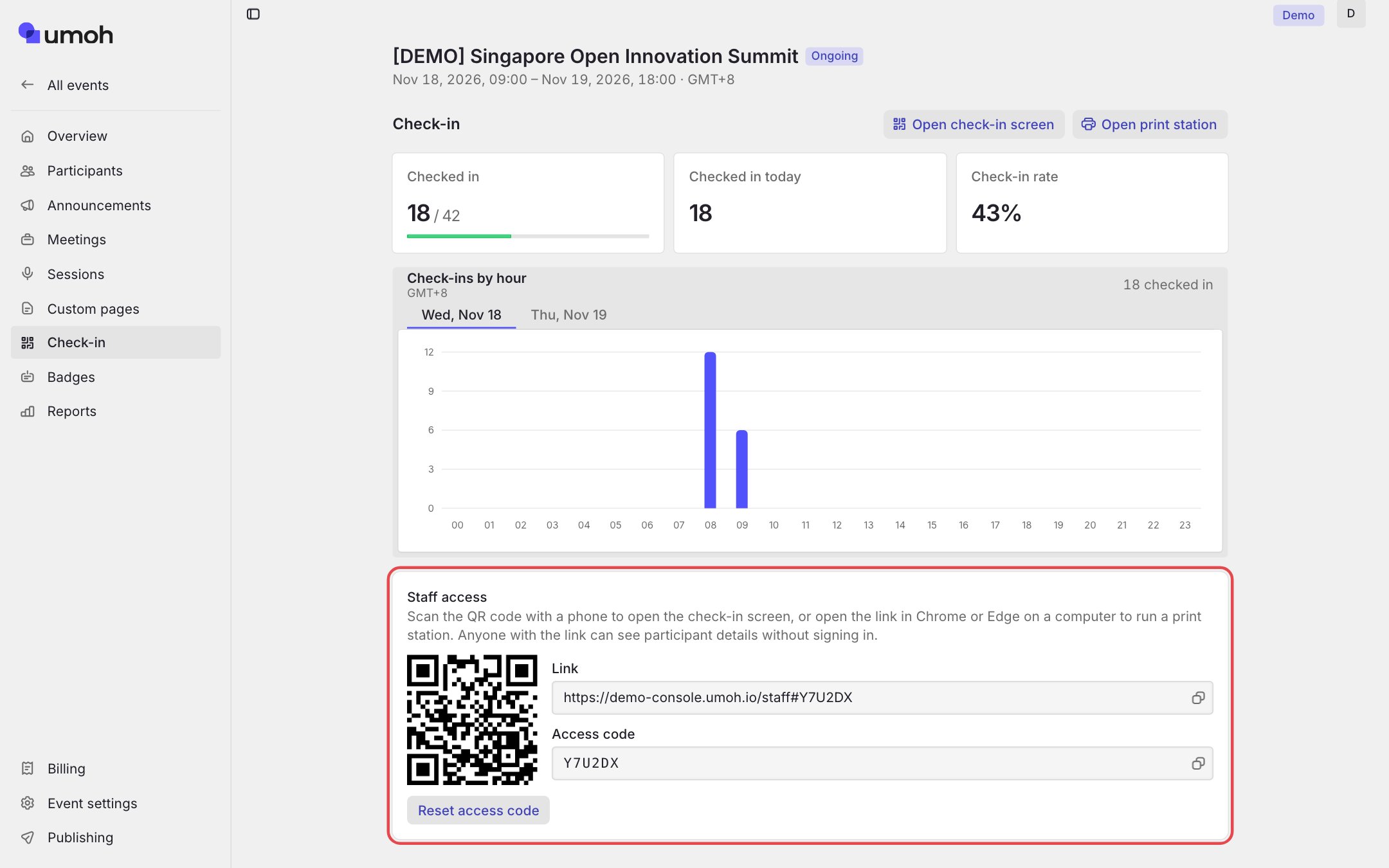
In the console, open Check-in and send staff the QR code or the Link on the Staff access card. Anyone with the link can see participant details, so share it with staff only.
The Staff access card on the Check-in page
2
Open the check-in screen
On a phone, scan the QR code or open the link. If the screen asks for a code, enter the Access code from the card.
The check-in screen on a phone
3
Find the participant
Search by name, email, company, job title, or participant number. To scan instead, select Scan QR and point the camera at the participant’s check-in QR code.
Search results on the check-in screen
4
Check in
Select the participant, then select Check in. The participant appears under Checked in today.
A participant's sheet with the Check in button
Special cases
Situation
What to do
The participant shows Pending approval, Rejected, or Declined
Select Check in anyway and confirm. The arrival is recorded and the approval status stays the same.
Someone was checked in by mistake
Open the participant, select More actions, then Undo check-in. Today’s record is removed right away.
The participant can’t find their QR code
Search by name. The code is in their approval email and on their ticket; see Check-in QR code.
You check in on the computer where the console is open
Select Open check-in screen next to the page title.
The link opens the print station setup on a computer
Select Check in without a printer.
Staff need the screen in another language
Use the language menu at the bottom of the Staff access screen.
You use a USB barcode scanner
Put the cursor in the search field and scan the code.
You print badges at the door
Set up a print station. With a station selected, the button reads Check in and print.
Follow arrivals in the console
The Check-in page counts arrivals as staff check people in. Today’s figures refresh every 30 seconds.
Figure
What it counts
Checked in
Participants who checked in at least once, next to the number approved.
Checked in today
Participants who checked in today, in the event time zone.
Check-in rate
Checked-in participants divided by approved participants. People checked in without approval count too, so the rate can pass 100%.
Check-ins by hour
Check-ins on the selected date, by hour. An event with several dates has a tab for each.
To see who has arrived, filter the roster by Checked in today.
Reset the access code
If the link reaches someone outside your staff, select Reset access code on the Staff access card. Every open check-in screen and print station stops, so send staff the new link. Any member of the organization can reset the code, and the overview’s Recent activity records it.
Before publishing and after the page ends
When
What staff see
Before the first publish
This event isn’t published yet. The check-in screen opens by itself once you publish. A print station can be set up and tested ahead.
After the event page ends
The event page has ended. The counts stay in the console.
Troubleshooting
This code doesn't work
The code was typed wrong. Send the link from the Staff access card
again, or have staff scan the QR code.
The access code was changed
Someone reset the code. Send staff the new link, or have them select Enter
another code and type the new code.
Too many requests. Try again shortly.
Wrong codes were entered several times from the same network, such as the
venue Wi-Fi. Wait 10 minutes. Screens that were already open recover by
themselves.
The camera is on but reads nothing
The venue network is blocking the QR reader. Switch the phone to mobile
data, or search for the participant by name.
That scan was skipped.
A participant sheet was open, or the previous lookup was still running.
Close the sheet and scan again.
⌘I
{"docsConfig":{"theme":"luma","$schema":"https://mintlify.com/docs.json","name":"Umoh Docs","colors":{"primary":"#5252FC","light":"#7888FF","dark":"#5252FC"},"logo":{"light":"https://mintcdn.com/umoh/jp2Ge0FpdYjqZlhi/logo/light.svg?fit=max\u0026auto=format\u0026n=jp2Ge0FpdYjqZlhi\u0026q=85\u0026s=18caaf37c96c155b5fead0bab93f1b19","dark":"https://mintcdn.com/umoh/jp2Ge0FpdYjqZlhi/logo/dark.svg?fit=max\u0026auto=format\u0026n=jp2Ge0FpdYjqZlhi\u0026q=85\u0026s=e9d6b1b5c4fd7906fa4a3954693a01db","href":"https://umoh.io"},"favicon":"https://mintcdn.com/umoh/jp2Ge0FpdYjqZlhi/favicon.svg?fit=max\u0026auto=format\u0026n=jp2Ge0FpdYjqZlhi\u0026q=85\u0026s=9a759b2b8ee975233e4edd28e079cb12","appearance":{"default":"light","strict":true},"navbar":{"primary":{"type":"button","label":"Open console","href":"https://console.umoh.io"}},"footer":{"links":[{"header":"Umoh","items":[{"label":"umoh.io","href":"https://umoh.io"}]}]},"seo":{"metatags":{"canonical":"https://docs.umoh.io","og:site_name":"Umoh Docs"},"organization":{"id":"https://umoh.io","name":"Umoh","legalName":"Splab, Inc.","url":"https://umoh.io","sameAs":["https://www.linkedin.com/showcase/umoh"]}},"fonts":{"family":"Inter"},"icons":{"library":"lucide"},"contextual":{"options":["copy","view","chatgpt","claude","mcp"],"display":"header"},"styling":{"latex":false},"navigation":{"languages":[{"language":"en","default":true,"navbar":{"primary":{"type":"button","label":"Open console","href":"https://console.umoh.io"}},"href":""},{"language":"ko","navbar":{"primary":{"type":"button","label":"콘솔 열기","href":"https://console.umoh.io"}},"href":"ko"},{"language":"ja","navbar":{"primary":{"type":"button","label":"コンソールを開く","href":"https://console.umoh.io"}},"href":"ja"}]}},"deployment":{"deploymentMetadataValue":{"subdomain":"umoh","hasAudioNarration":false,"actualSubdomain":"umoh","customDomains":["docs.umoh.io"],"gitSource":{"type":"github","owner":"team-splab","repo":"umoh-client","deployBranch":"main","contentDirectory":"apps/docs","isPrivate":true,"mountPath":"","label":"","_id":"6afc812db877bf043697f596"},"entitlements":{},"buildId":"6b041b1d6d5fca11cbfdc99d","clientVersion":"0.0.4271","searchFilterCounts":[{"language":"en","tag":"Host guide","count":35},{"language":"ja","tag":"主催者ガイド","count":35},{"language":"ko","tag":"주최자 가이드","count":35},{"language":"en","tag":"Participant guide","count":16},{"language":"ja","tag":"参加者ガイド","count":16},{"language":"ko","tag":"참가자 가이드","count":16},{"language":"en","tag":"Meetings","count":8},{"language":"ja","tag":"ミーティング","count":8},{"language":"ko","tag":"미팅","count":8},{"language":"en","tag":"Getting started","count":7},{"language":"en","tag":"Event settings","count":7},{"language":"ja","tag":"はじめに","count":7},{"language":"ja","tag":"イベント設定","count":7},{"language":"ko","tag":"시작하기","count":7},{"language":"ko","tag":"행사 설정","count":7},{"language":"en","tag":"On-site","count":6},{"language":"ja","tag":"当日運営","count":6},{"language":"ko","tag":"현장 운영","count":6},{"language":"en","tag":"Participants","count":4},{"language":"ja","tag":"参加者","count":4},{"language":"ko","tag":"참가자","count":4},{"language":"en","tag":"FAQ","count":2},{"language":"en","tag":"Organization","count":2},{"language":"en","tag":"Insights","count":2},{"language":"ja","tag":"よくある質問","count":2},{"language":"ja","tag":"組織","count":2},{"language":"ja","tag":"状況","count":2},{"language":"ko","tag":"자주 묻는 질문","count":2},{"language":"ko","tag":"조직","count":2},{"language":"ko","tag":"현황","count":2}]},"assistantConfig":{"enableAskAiButton":false,"enableStarterQuestions":false,"enableContextualStarterQuestions":false,"enableAskAiSearchBar":true},"basePath":"","hasChatPermissions":false,"hasWebMcpPermissions":false,"toggles":[{"name":"kill-isr","enabled":true,"variant":{"name":"disabled","enabled":false,"feature_enabled":true},"impressionData":false},{"name":"custom-rbac-roles","enabled":true,"variant":{"name":"disabled","enabled":false,"feature_enabled":true},"impressionData":false},{"name":"agent-mintlify-slack","enabled":true,"variant":{"name":"disabled","enabled":false,"feature_enabled":true},"impressionData":false},{"name":"agent-integrations-settings","enabled":true,"variant":{"name":"disabled","enabled":false,"feature_enabled":true},"impressionData":false},{"name":"rbac-expansion","enabled":true,"variant":{"name":"disabled","enabled":false,"feature_enabled":true},"impressionData":false},{"name":"automations-pr-grouping","enabled":true,"variant":{"name":"disabled","enabled":false,"feature_enabled":true},"impressionData":false},{"name":"custom-prefix","enabled":true,"variant":{"name":"disabled","enabled":false,"feature_enabled":true},"impressionData":false},{"name":"analytics-v7","enabled":true,"variant":{"name":"disabled","enabled":false,"feature_enabled":true},"impressionData":false},{"name":"user-flows-analytics","enabled":true,"variant":{"name":"disabled","enabled":false,"feature_enabled":true},"impressionData":false},{"name":"no-publish-flow","enabled":true,"variant":{"name":"disabled","enabled":false,"feature_enabled":true},"impressionData":false},{"name":"workos-onboarding","enabled":true,"variant":{"name":"disabled","enabled":false,"feature_enabled":true},"impressionData":false},{"name":"snapshot-serving-live","enabled":true,"variant":{"name":"disabled","enabled":false,"feature_enabled":true},"impressionData":false},{"name":"stripTemperatureMiddleware","enabled":true,"variant":{"name":"disabled","enabled":false,"feature_enabled":true},"impressionData":false},{"name":"support-platform-pylon-zendesk","enabled":true,"variant":{"name":"disabled","enabled":false,"feature_enabled":true},"impressionData":false},{"name":"snapshot-serving","enabled":true,"variant":{"name":"disabled","enabled":false,"feature_enabled":true},"impressionData":false},{"name":"instant-rollback","enabled":true,"variant":{"name":"disabled","enabled":false,"feature_enabled":true},"impressionData":false},{"name":"granular-notifications-server","enabled":true,"variant":{"name":"disabled","enabled":false,"feature_enabled":true},"impressionData":false},{"name":"granular-notifications","enabled":true,"variant":{"name":"disabled","enabled":false,"feature_enabled":true},"impressionData":false},{"name":"automations-fable","enabled":true,"variant":{"name":"disabled","enabled":false,"feature_enabled":true},"impressionData":false},{"name":"fixed-ai-action-pricing","enabled":true,"variant":{"name":"disabled","enabled":false,"feature_enabled":true},"impressionData":false},{"name":"site-roles","enabled":true,"variant":{"name":"disabled","enabled":false,"feature_enabled":true},"impressionData":false},{"name":"automation-resolve-merge-conflict","enabled":true,"variant":{"name":"disabled","enabled":false,"feature_enabled":true},"impressionData":false},{"name":"scoped-publishing","enabled":true,"variant":{"name":"disabled","enabled":false,"feature_enabled":true},"impressionData":false},{"name":"mintql","enabled":true,"variant":{"name":"disabled","enabled":false,"feature_enabled":true},"impressionData":false},{"name":"page-level-analytics","enabled":true,"variant":{"name":"disabled","enabled":false,"feature_enabled":true},"impressionData":false},{"name":"editor-version-history-v2","enabled":true,"variant":{"name":"disabled","enabled":false,"feature_enabled":true},"impressionData":false},{"name":"billing-page-v2","enabled":true,"variant":{"name":"disabled","enabled":false,"feature_enabled":true},"impressionData":false},{"name":"full-page-search","enabled":true,"variant":{"name":"disabled","enabled":false,"feature_enabled":true},"impressionData":false},{"name":"workspace-projects","enabled":true,"variant":{"name":"disabled","enabled":false,"feature_enabled":true},"impressionData":false},{"name":"assistant-v5","enabled":true,"variant":{"name":"disabled","enabled":false,"feature_enabled":true},"impressionData":false},{"name":"fork-pr-previews","enabled":true,"variant":{"name":"disabled","enabled":false,"feature_enabled":true},"impressionData":false},{"name":"revalidation-jwt","enabled":true,"variant":{"name":"disabled","enabled":false,"feature_enabled":true},"impressionData":false},{"name":"workos-sso-scim","enabled":true,"variant":{"name":"disabled","enabled":false,"feature_enabled":true},"impressionData":false},{"name":"hobby-abuse-scan","enabled":true,"variant":{"name":"disabled","enabled":false,"feature_enabled":true},"impressionData":false},{"name":"dashboard-inbox","enabled":true,"variant":{"name":"disabled","enabled":false,"feature_enabled":true},"impressionData":false},{"name":"workos-signup","enabled":true,"variant":{"name":"disabled","enabled":false,"feature_enabled":true},"impressionData":false},{"name":"turbopuffer-dual-write","enabled":true,"variant":{"name":"disabled","enabled":false,"feature_enabled":true},"impressionData":false},{"name":"workos-enabled","enabled":true,"variant":{"name":"disabled","enabled":false,"feature_enabled":true},"impressionData":false},{"name":"approve-review-flow","enabled":true,"variant":{"name":"disabled","enabled":false,"feature_enabled":true},"impressionData":false},{"name":"editor-metadata","enabled":true,"variant":{"name":"disabled","enabled":false,"feature_enabled":true},"impressionData":false},{"name":"sso-setup-deadline-banner","enabled":true,"variant":{"name":"disabled","enabled":false,"feature_enabled":true},"impressionData":false},{"name":"turbopuffer-serve","enabled":true,"variant":{"name":"disabled","enabled":false,"feature_enabled":true},"impressionData":false},{"name":"live-agents","enabled":true,"variant":{"name":"disabled","enabled":false,"feature_enabled":true},"impressionData":false},{"name":"starter-pricing","enabled":true,"variant":{"name":"control","enabled":true,"payload":{"type":"string","value":"control"},"feature_enabled":true},"impressionData":false},{"name":"llms-txt-v2","enabled":true,"variant":{"name":"disabled","enabled":false,"feature_enabled":true},"impressionData":false},{"name":"wildcard-email-auth","enabled":true,"variant":{"name":"disabled","enabled":false,"feature_enabled":true},"impressionData":false}],"googleFontsInlined":false},"customCss":[]}
{"page":{"pagePath":"host/on-site/check-in","slug":"/host/on-site/check-in","pageMetadata":{"title":"Check in participants","sidebarTitle":"Check-in","description":"Share the staff link and check participants in from a phone.","href":"/host/on-site/check-in"},"description":{"compiledSource":"\"use strict\";\nconst {jsx: _jsx} = arguments[0];\nconst {useMDXComponents: _provideComponents} = arguments[0];\nfunction _createMdxContent(props) {\n const _components = {\n p: \"p\",\n ..._provideComponents(),\n ...props.components\n };\n return _jsx(_components.p, {\n children: \"Share the staff link and check participants in from a phone.\"\n });\n}\nfunction MDXContent(props = {}) {\n const {wrapper: MDXLayout} = {\n ..._provideComponents(),\n ...props.components\n };\n return MDXLayout ? _jsx(MDXLayout, {\n ...props,\n children: _jsx(_createMdxContent, {\n ...props\n })\n }) : _createMdxContent(props);\n}\nreturn {\n default: MDXContent\n};\n","frontmatter":{},"scope":{}},"pageType":"default","mdx":{"mdxSource":{"compiledSource":"\"use strict\";const{Fragment:_Fragment,jsx:_jsx,jsxs:_jsxs}=arguments[0];const{useMDXComponents:_provideComponents}=arguments[0];function _createMdxContent(props){const _components={a:`a`,p:`p`,strong:`strong`,tbody:`tbody`,td:`td`,th:`th`,thead:`thead`,tr:`tr`,..._provideComponents(),...props.components},{Accordion,AccordionGroup,Frame,Heading,Note,OptimizedImage,Step,Steps,Table}=_components;if(!Accordion)_missingMdxReference(`Accordion`,true);if(!AccordionGroup)_missingMdxReference(`AccordionGroup`,true);if(!Frame)_missingMdxReference(`Frame`,true);if(!Heading)_missingMdxReference(`Heading`,true);if(!Note)_missingMdxReference(`Note`,true);if(!OptimizedImage)_missingMdxReference(`OptimizedImage`,true);if(!Step)_missingMdxReference(`Step`,true);if(!Steps)_missingMdxReference(`Steps`,true);if(!Table)_missingMdxReference(`Table`,true);return _jsxs(_Fragment,{children:[_jsx(_components.p,{children:`Staff check participants in from their phones with a link you share from the console. They don’t need a console account.`}),`\n`,_jsx(Note,{children:_jsx(_components.p,{children:`Check-in opens the first time you publish the event and closes when the event\npage ends. It’s included in every plan.`})}),`\n`,_jsxs(Steps,{children:[_jsxs(Step,{title:`Share the staff link`,children:[_jsxs(_components.p,{children:[`In the console, open `,_jsx(_components.strong,{children:`Check-in`}),` and send staff the QR code or the `,_jsx(_components.strong,{children:`Link`}),` on the `,_jsx(_components.strong,{children:`Staff access`}),` card. Anyone with the link can see participant details, so share it with staff only.`]}),_jsx(Frame,{caption:`The Staff access card on the Check-in page`,children:_jsx(OptimizedImage,{src:`https://mintcdn.com/umoh/JaTbo1Pex5odCKBx/images/en/console/check-in-share.png?fit=max\u0026auto=format\u0026n=JaTbo1Pex5odCKBx\u0026q=85\u0026s=f59eed6731a9ea3604ad93e364ecac3f`,alt:`The Check-in page in the console with the Staff access card outlined`,\"data-og-width\":`2160`,width:`2160`,\"data-og-height\":`1350`,height:`1350`,\"data-path\":`images/en/console/check-in-share.png`,\"data-optimize\":`true`,\"data-opv\":`3`,srcset:`https://mintcdn.com/umoh/JaTbo1Pex5odCKBx/images/en/console/check-in-share.png?w=280\u0026fit=max\u0026auto=format\u0026n=JaTbo1Pex5odCKBx\u0026q=85\u0026s=9b13a0fe874ba8dd588306b87c9d8dc8 280w, https://mintcdn.com/umoh/JaTbo1Pex5odCKBx/images/en/console/check-in-share.png?w=560\u0026fit=max\u0026auto=format\u0026n=JaTbo1Pex5odCKBx\u0026q=85\u0026s=dd2716de6e0a94ffb681d1b76592b360 560w, https://mintcdn.com/umoh/JaTbo1Pex5odCKBx/images/en/console/check-in-share.png?w=840\u0026fit=max\u0026auto=format\u0026n=JaTbo1Pex5odCKBx\u0026q=85\u0026s=f3d03ab7d5f3908596c31d6e1460ee67 840w, https://mintcdn.com/umoh/JaTbo1Pex5odCKBx/images/en/console/check-in-share.png?w=1100\u0026fit=max\u0026auto=format\u0026n=JaTbo1Pex5odCKBx\u0026q=85\u0026s=a2e79d870d2e113fd202b0203293e5f3 1100w, https://mintcdn.com/umoh/JaTbo1Pex5odCKBx/images/en/console/check-in-share.png?w=1650\u0026fit=max\u0026auto=format\u0026n=JaTbo1Pex5odCKBx\u0026q=85\u0026s=16be807244e572a9e4eb5d51e8ead257 1650w, https://mintcdn.com/umoh/JaTbo1Pex5odCKBx/images/en/console/check-in-share.png?w=2500\u0026fit=max\u0026auto=format\u0026n=JaTbo1Pex5odCKBx\u0026q=85\u0026s=120c8f600d92d5263dce5727f1275fdb 2500w`})})]}),_jsxs(Step,{title:`Open the check-in screen`,children:[_jsxs(_components.p,{children:[`On a phone, scan the QR code or open the link. If the screen asks for a code, enter the `,_jsx(_components.strong,{children:`Access code`}),` from the card.`]}),_jsx(Frame,{caption:`The check-in screen on a phone`,children:_jsx(OptimizedImage,{src:`https://mintcdn.com/umoh/zMQVvys-Xj6HFrRS/images/en/console/staff-check-in.png?fit=max\u0026auto=format\u0026n=zMQVvys-Xj6HFrRS\u0026q=85\u0026s=90fd6ef7b6d7cbe7628ce1eb1c6da830`,alt:`The staff check-in screen with a search field and the Scan QR button`,className:`mint-h-auto mint-w-80`,\"data-og-width\":`780`,width:`780`,\"data-og-height\":`1240`,height:`1240`,\"data-path\":`images/en/console/staff-check-in.png`,\"data-optimize\":`true`,\"data-opv\":`3`,srcset:`https://mintcdn.com/umoh/zMQVvys-Xj6HFrRS/images/en/console/staff-check-in.png?w=280\u0026fit=max\u0026auto=format\u0026n=zMQVvys-Xj6HFrRS\u0026q=85\u0026s=43c7fe73942785d0cd0de35f093aba47 280w, https://mintcdn.com/umoh/zMQVvys-Xj6HFrRS/images/en/console/staff-check-in.png?w=560\u0026fit=max\u0026auto=format\u0026n=zMQVvys-Xj6HFrRS\u0026q=85\u0026s=853320556156c2294b23e873d6c28523 560w, https://mintcdn.com/umoh/zMQVvys-Xj6HFrRS/images/en/console/staff-check-in.png?w=840\u0026fit=max\u0026auto=format\u0026n=zMQVvys-Xj6HFrRS\u0026q=85\u0026s=bc28920b79888b3046782b01131c9a22 840w, https://mintcdn.com/umoh/zMQVvys-Xj6HFrRS/images/en/console/staff-check-in.png?w=1100\u0026fit=max\u0026auto=format\u0026n=zMQVvys-Xj6HFrRS\u0026q=85\u0026s=3db50960003ce773a5085a3660f5dfa0 1100w, https://mintcdn.com/umoh/zMQVvys-Xj6HFrRS/images/en/console/staff-check-in.png?w=1650\u0026fit=max\u0026auto=format\u0026n=zMQVvys-Xj6HFrRS\u0026q=85\u0026s=669cd49ce403427d62007d80bb378635 1650w, https://mintcdn.com/umoh/zMQVvys-Xj6HFrRS/images/en/console/staff-check-in.png?w=2500\u0026fit=max\u0026auto=format\u0026n=zMQVvys-Xj6HFrRS\u0026q=85\u0026s=6687b22aacae0ebf68c46c602e30cf93 2500w`})})]}),_jsxs(Step,{title:`Find the participant`,children:[_jsxs(_components.p,{children:[`Search by name, email, company, job title, or participant number. To scan instead, select `,_jsx(_components.strong,{children:`Scan QR`}),` and point the camera at the participant’s check-in QR code.`]}),_jsx(Frame,{caption:`Search results on the check-in screen`,children:_jsx(OptimizedImage,{src:`https://mintcdn.com/umoh/eslfg-t_Hs5KkNrX/images/en/console/check-in-3-search.png?fit=max\u0026auto=format\u0026n=eslfg-t_Hs5KkNrX\u0026q=85\u0026s=aacdf143287f7f0193dc7d4ab8501119`,alt:`The check-in screen with a search term entered and the matching participants listed below`,className:`mint-h-auto mint-w-80`,\"data-og-width\":`780`,width:`780`,\"data-og-height\":`1240`,height:`1240`,\"data-path\":`images/en/console/check-in-3-search.png`,\"data-optimize\":`true`,\"data-opv\":`3`,srcset:`https://mintcdn.com/umoh/eslfg-t_Hs5KkNrX/images/en/console/check-in-3-search.png?w=280\u0026fit=max\u0026auto=format\u0026n=eslfg-t_Hs5KkNrX\u0026q=85\u0026s=7c42631547243f98f31d77cfa8d46db2 280w, https://mintcdn.com/umoh/eslfg-t_Hs5KkNrX/images/en/console/check-in-3-search.png?w=560\u0026fit=max\u0026auto=format\u0026n=eslfg-t_Hs5KkNrX\u0026q=85\u0026s=bb945fc2ec1dd9b5b7a363dcbcae45e8 560w, https://mintcdn.com/umoh/eslfg-t_Hs5KkNrX/images/en/console/check-in-3-search.png?w=840\u0026fit=max\u0026auto=format\u0026n=eslfg-t_Hs5KkNrX\u0026q=85\u0026s=056e7d295833fdf1396974c30b092519 840w, https://mintcdn.com/umoh/eslfg-t_Hs5KkNrX/images/en/console/check-in-3-search.png?w=1100\u0026fit=max\u0026auto=format\u0026n=eslfg-t_Hs5KkNrX\u0026q=85\u0026s=63abb4b3ee659855df526744f9a041fe 1100w, https://mintcdn.com/umoh/eslfg-t_Hs5KkNrX/images/en/console/check-in-3-search.png?w=1650\u0026fit=max\u0026auto=format\u0026n=eslfg-t_Hs5KkNrX\u0026q=85\u0026s=3a9c35bc9d749c2352979578fbc07706 1650w, https://mintcdn.com/umoh/eslfg-t_Hs5KkNrX/images/en/console/check-in-3-search.png?w=2500\u0026fit=max\u0026auto=format\u0026n=eslfg-t_Hs5KkNrX\u0026q=85\u0026s=a692627e4d967f30acf664b04fb970c2 2500w`})})]}),_jsxs(Step,{title:`Check in`,children:[_jsxs(_components.p,{children:[`Select the participant, then select `,_jsx(_components.strong,{children:`Check in`}),`. The participant appears under `,_jsx(_components.strong,{children:`Checked in today`}),`.`]}),_jsx(Frame,{caption:`A participant's sheet with the Check in button`,children:_jsx(OptimizedImage,{src:`https://mintcdn.com/umoh/zMQVvys-Xj6HFrRS/images/en/console/staff-participant.png?fit=max\u0026auto=format\u0026n=zMQVvys-Xj6HFrRS\u0026q=85\u0026s=226c997c8366425e6ea286535359ca99`,alt:`A participant's sheet on the check-in screen with the Check in button at the bottom`,className:`mint-h-auto mint-w-80`,\"data-og-width\":`780`,width:`780`,\"data-og-height\":`1240`,height:`1240`,\"data-path\":`images/en/console/staff-participant.png`,\"data-optimize\":`true`,\"data-opv\":`3`,srcset:`https://mintcdn.com/umoh/zMQVvys-Xj6HFrRS/images/en/console/staff-participant.png?w=280\u0026fit=max\u0026auto=format\u0026n=zMQVvys-Xj6HFrRS\u0026q=85\u0026s=f94945419a07304bd20d7bac002a9b4a 280w, https://mintcdn.com/umoh/zMQVvys-Xj6HFrRS/images/en/console/staff-participant.png?w=560\u0026fit=max\u0026auto=format\u0026n=zMQVvys-Xj6HFrRS\u0026q=85\u0026s=4655c544f4dd56bc999e2a76d65266fc 560w, https://mintcdn.com/umoh/zMQVvys-Xj6HFrRS/images/en/console/staff-participant.png?w=840\u0026fit=max\u0026auto=format\u0026n=zMQVvys-Xj6HFrRS\u0026q=85\u0026s=6d110d1f10f3e043e6c4ecb1e29b8d72 840w, https://mintcdn.com/umoh/zMQVvys-Xj6HFrRS/images/en/console/staff-participant.png?w=1100\u0026fit=max\u0026auto=format\u0026n=zMQVvys-Xj6HFrRS\u0026q=85\u0026s=6bb243a605ad616deaca934fff03d0e3 1100w, https://mintcdn.com/umoh/zMQVvys-Xj6HFrRS/images/en/console/staff-participant.png?w=1650\u0026fit=max\u0026auto=format\u0026n=zMQVvys-Xj6HFrRS\u0026q=85\u0026s=abb57a596a299947c70ae8a0b2079b4c 1650w, https://mintcdn.com/umoh/zMQVvys-Xj6HFrRS/images/en/console/staff-participant.png?w=2500\u0026fit=max\u0026auto=format\u0026n=zMQVvys-Xj6HFrRS\u0026q=85\u0026s=f5e23da7ad185bd645f7e0b15c0da5b6 2500w`})})]})]}),`\n`,_jsx(Heading,{level:`2`,id:`special-cases`,children:`Special cases`}),`\n`,_jsxs(Table,{children:[_jsx(_components.thead,{children:_jsxs(_components.tr,{children:[_jsx(_components.th,{children:`Situation`}),_jsx(_components.th,{children:`What to do`})]})}),_jsxs(_components.tbody,{children:[_jsxs(_components.tr,{children:[_jsxs(_components.td,{children:[`The participant shows `,_jsx(_components.strong,{children:`Pending approval`}),`, `,_jsx(_components.strong,{children:`Rejected`}),`, or `,_jsx(_components.strong,{children:`Declined`})]}),_jsxs(_components.td,{children:[`Select `,_jsx(_components.strong,{children:`Check in anyway`}),` and confirm. The arrival is recorded and the approval status stays the same.`]})]}),_jsxs(_components.tr,{children:[_jsx(_components.td,{children:`Someone was checked in by mistake`}),_jsxs(_components.td,{children:[`Open the participant, select `,_jsx(_components.strong,{children:`More actions`}),`, then `,_jsx(_components.strong,{children:`Undo check-in`}),`. Today’s record is removed right away.`]})]}),_jsxs(_components.tr,{children:[_jsx(_components.td,{children:`The participant can’t find their QR code`}),_jsxs(_components.td,{children:[`Search by name. The code is in their approval email and on their ticket; see `,_jsx(_components.a,{href:`/participant/check-in`,children:`Check-in QR code`}),`.`]})]}),_jsxs(_components.tr,{children:[_jsx(_components.td,{children:`You check in on the computer where the console is open`}),_jsxs(_components.td,{children:[`Select `,_jsx(_components.strong,{children:`Open check-in screen`}),` next to the page title.`]})]}),_jsxs(_components.tr,{children:[_jsx(_components.td,{children:`The link opens the print station setup on a computer`}),_jsxs(_components.td,{children:[`Select `,_jsx(_components.strong,{children:`Check in without a printer`}),`.`]})]}),_jsxs(_components.tr,{children:[_jsx(_components.td,{children:`Staff need the screen in another language`}),_jsxs(_components.td,{children:[`Use the language menu at the bottom of the `,_jsx(_components.strong,{children:`Staff access`}),` screen.`]})]}),_jsxs(_components.tr,{children:[_jsx(_components.td,{children:`You use a USB barcode scanner`}),_jsx(_components.td,{children:`Put the cursor in the search field and scan the code.`})]}),_jsxs(_components.tr,{children:[_jsx(_components.td,{children:`You print badges at the door`}),_jsxs(_components.td,{children:[`Set up a `,_jsx(_components.a,{href:`/host/on-site/print-station`,children:`print station`}),`. With a station selected, the button reads `,_jsx(_components.strong,{children:`Check in and print`}),`.`]})]})]})]}),`\n`,_jsx(Heading,{level:`2`,id:`follow-arrivals-in-the-console`,children:`Follow arrivals in the console`}),`\n`,_jsxs(_components.p,{children:[`The `,_jsx(_components.strong,{children:`Check-in`}),` page counts arrivals as staff check people in. Today’s figures refresh every 30 seconds.`]}),`\n`,_jsxs(Table,{children:[_jsx(_components.thead,{children:_jsxs(_components.tr,{children:[_jsx(_components.th,{children:`Figure`}),_jsx(_components.th,{children:`What it counts`})]})}),_jsxs(_components.tbody,{children:[_jsxs(_components.tr,{children:[_jsx(_components.td,{children:_jsx(_components.strong,{children:`Checked in`})}),_jsx(_components.td,{children:`Participants who checked in at least once, next to the number approved.`})]}),_jsxs(_components.tr,{children:[_jsx(_components.td,{children:_jsx(_components.strong,{children:`Checked in today`})}),_jsx(_components.td,{children:`Participants who checked in today, in the event time zone.`})]}),_jsxs(_components.tr,{children:[_jsx(_components.td,{children:_jsx(_components.strong,{children:`Check-in rate`})}),_jsx(_components.td,{children:`Checked-in participants divided by approved participants. People checked in without approval count too, so the rate can pass 100%.`})]}),_jsxs(_components.tr,{children:[_jsx(_components.td,{children:_jsx(_components.strong,{children:`Check-ins by hour`})}),_jsx(_components.td,{children:`Check-ins on the selected date, by hour. An event with several dates has a tab for each.`})]})]})]}),`\n`,_jsxs(_components.p,{children:[`To see who has arrived, filter the `,_jsx(_components.a,{href:`/host/participants/roster`,children:`roster`}),` by `,_jsx(_components.strong,{children:`Checked in today`}),`.`]}),`\n`,_jsx(Heading,{level:`2`,id:`reset-the-access-code`,children:`Reset the access code`}),`\n`,_jsxs(_components.p,{children:[`If the link reaches someone outside your staff, select `,_jsx(_components.strong,{children:`Reset access code`}),` on the `,_jsx(_components.strong,{children:`Staff access`}),` card. Every open check-in screen and print station stops, so send staff the new link. Any member of the organization can reset the code, and the overview’s `,_jsx(_components.strong,{children:`Recent activity`}),` records it.`]}),`\n`,_jsx(Heading,{level:`2`,id:`before-publishing-and-after-the-page-ends`,children:`Before publishing and after the page ends`}),`\n`,_jsxs(Table,{children:[_jsx(_components.thead,{children:_jsxs(_components.tr,{children:[_jsx(_components.th,{children:`When`}),_jsx(_components.th,{children:`What staff see`})]})}),_jsxs(_components.tbody,{children:[_jsxs(_components.tr,{children:[_jsx(_components.td,{children:`Before the first publish`}),_jsxs(_components.td,{children:[_jsx(_components.strong,{children:`This event isn’t published yet`}),`. The check-in screen opens by itself once you publish. A print station can be set up and tested ahead.`]})]}),_jsxs(_components.tr,{children:[_jsx(_components.td,{children:`After the event page ends`}),_jsxs(_components.td,{children:[_jsx(_components.strong,{children:`The event page has ended`}),`. The counts stay in the console.`]})]})]})]}),`\n`,_jsx(Heading,{level:`2`,id:`troubleshooting`,children:`Troubleshooting`}),`\n`,_jsxs(AccordionGroup,{children:[_jsx(Accordion,{title:`This code doesn't work`,id:`this-code-doesnt-work`,children:_jsxs(_components.p,{children:[`The code was typed wrong. Send the link from the `,_jsx(_components.strong,{children:`Staff access`}),` card\nagain, or have staff scan the QR code.`]})}),_jsx(Accordion,{title:`The access code was changed`,id:`the-access-code-was-changed`,children:_jsxs(_components.p,{children:[`Someone reset the code. Send staff the new link, or have them select `,_jsx(_components.strong,{children:`Enter\nanother code`}),` and type the new code.`]})}),_jsx(Accordion,{title:`Too many requests. Try again shortly.`,id:`too-many-requests-try-again-shortly`,children:_jsx(_components.p,{children:`Wrong codes were entered several times from the same network, such as the\nvenue Wi-Fi. Wait 10 minutes. Screens that were already open recover by\nthemselves.`})}),_jsx(Accordion,{title:`The camera is on but reads nothing`,id:`the-camera-is-on-but-reads-nothing`,children:_jsx(_components.p,{children:`The venue network is blocking the QR reader. Switch the phone to mobile\ndata, or search for the participant by name.`})}),_jsx(Accordion,{title:`That scan was skipped.`,id:`that-scan-was-skipped`,children:_jsx(_components.p,{children:`A participant sheet was open, or the previous lookup was still running.\nClose the sheet and scan again.`})})]})]})}function MDXContent(props={}){const{wrapper:MDXLayout}={..._provideComponents(),...props.components};return MDXLayout?_jsx(MDXLayout,{...props,children:_jsx(_createMdxContent,{...props})}):_createMdxContent(props)}return{default:MDXContent};function _missingMdxReference(id,component){throw new Error(`Expected `+(component?`component`:`object`)+\" `\"+id+\"` to be defined: you likely forgot to import, pass, or provide it.\")}","frontmatter":{},"scope":{"config":{},"pageMetadata":{"title":"Check in participants","sidebarTitle":"Check-in","description":"Share the staff link and check participants in from a phone.","href":"/host/on-site/check-in"}}},"mdxSourceWithNoJs":null},"mdxExtracts":{"tableOfContents":[{"title":"Special cases","slug":"special-cases","depth":2,"children":[]},{"title":"Follow arrivals in the console","slug":"follow-arrivals-in-the-console","depth":2,"children":[]},{"title":"Reset the access code","slug":"reset-the-access-code","depth":2,"children":[]},{"title":"Before publishing and after the page ends","slug":"before-publishing-and-after-the-page-ends","depth":2,"children":[]},{"title":"Troubleshooting","slug":"troubleshooting","depth":2,"children":[]}],"codeExamples":{}},"jsLinks":[],"dynamicCss":".mint-h-auto {\n height: auto\n}\n.mint-w-80 {\n width: 20rem\n}","subdomain":"umoh","siteName":"Umoh Docs","title":"Check in participants - Umoh Docs","navMaps":{"firstHrefInVersion":{},"firstHrefInLanguage":{"en":{"href":"/host/on-site/check-in","matchLevel":0},"ko":{"href":"/ko/host/on-site/check-in","matchLevel":1},"ja":{"href":"/ja/host/on-site/check-in","matchLevel":1}}},"lastModified":"2026-11-20T02:37:05.295Z","originalFileLocation":"host/on-site/check-in.mdx","locale":"en"},"headHtml":"\u003cscript data-mint-head>(function(){var d=document.documentElement,p=\"light\";if(!p){try{p=localStorage.getItem(\"isDarkMode\")}catch(e){}if(p==='true')p='dark';else if(p==='false')p='light';if(p!=='light'\u0026\u0026p!=='dark'\u0026\u0026p!=='system')p=\"light\"}var r=p==='system'?(matchMedia(\"(prefers-color-scheme: dark)\").matches?'dark':'light'):p;d.classList.remove(r==='dark'?'light':'dark');d.classList.add(r);d.setAttribute(\"data-theme-preference\",p)})();\u003c/script>\u003cmeta data-mint-head name=\"description\" content=\"Share the staff link and check participants in from a phone.\">\u003cmeta data-mint-head name=\"application-name\" content=\"Umoh Docs\">\u003cmeta data-mint-head name=\"generator\" content=\"Mintlify\">\u003clink data-mint-head rel=\"icon\" type=\"image/png\" sizes=\"192x192\" href=\"/mintlify-assets/_mintlify/favicons/umoh/p1VSzsRqqAJ2N7cU/_generated/favicon/android-chrome-192x192.png\" media=\"(prefers-color-scheme: light)\">\u003clink data-mint-head rel=\"apple-touch-icon\" type=\"image/png\" sizes=\"180x180\" href=\"/mintlify-assets/_mintlify/favicons/umoh/p1VSzsRqqAJ2N7cU/_generated/favicon/apple-touch-icon.png\">\u003clink data-mint-head rel=\"icon\" type=\"image/png\" sizes=\"16x16\" href=\"/mintlify-assets/_mintlify/favicons/umoh/p1VSzsRqqAJ2N7cU/_generated/favicon/favicon-16x16.png\" media=\"(prefers-color-scheme: light)\">\u003clink data-mint-head rel=\"icon\" type=\"image/png\" sizes=\"32x32\" href=\"/mintlify-assets/_mintlify/favicons/umoh/p1VSzsRqqAJ2N7cU/_generated/favicon/favicon-32x32.png\" media=\"(prefers-color-scheme: light)\">\u003clink data-mint-head rel=\"shortcut icon\" type=\"image/x-icon\" href=\"/mintlify-assets/_mintlify/favicons/umoh/p1VSzsRqqAJ2N7cU/_generated/favicon/favicon.ico\" media=\"(prefers-color-scheme: light)\">\u003clink data-mint-head rel=\"icon\" type=\"image/png\" sizes=\"192x192\" href=\"/mintlify-assets/_mintlify/favicons/umoh/p1VSzsRqqAJ2N7cU/_generated/favicon-dark/android-chrome-192x192.png\" media=\"(prefers-color-scheme: dark)\">\u003clink data-mint-head rel=\"icon\" type=\"image/png\" sizes=\"16x16\" href=\"/mintlify-assets/_mintlify/favicons/umoh/p1VSzsRqqAJ2N7cU/_generated/favicon-dark/favicon-16x16.png\" media=\"(prefers-color-scheme: dark)\">\u003clink data-mint-head rel=\"icon\" type=\"image/png\" sizes=\"32x32\" href=\"/mintlify-assets/_mintlify/favicons/umoh/p1VSzsRqqAJ2N7cU/_generated/favicon-dark/favicon-32x32.png\" media=\"(prefers-color-scheme: dark)\">\u003clink data-mint-head rel=\"shortcut icon\" type=\"image/x-icon\" href=\"/mintlify-assets/_mintlify/favicons/umoh/p1VSzsRqqAJ2N7cU/_generated/favicon-dark/favicon.ico\" media=\"(prefers-color-scheme: dark)\">\u003cmeta data-mint-head property=\"og:title\" content=\"Check in participants - Umoh Docs\">\u003cmeta data-mint-head property=\"og:description\" content=\"Share the staff link and check participants in from a phone.\">\u003cmeta data-mint-head property=\"og:site_name\" content=\"Umoh Docs\">\u003cmeta data-mint-head property=\"og:url\" content=\"https://docs.umoh.io/host/on-site/check-in\">\u003cmeta data-mint-head property=\"og:type\" content=\"website\">\u003cmeta data-mint-head property=\"og:image\" content=\"https://umoh.mintlify.site/_mintlify/api/og/v2?division=On-site\u0026amp;title=Check+in+participants\u0026amp;description=Share+the+staff+link+and+check+participants+in+from+a+phone.\u0026amp;theme=52fa3f785130f97df9f87943\u0026amp;signature=56839b50a1ac7461fda15abf242224bc074a8a66b3e559f4f0d7239e19a08e0b\">\u003cmeta data-mint-head property=\"og:image:width\" content=\"1200\">\u003cmeta data-mint-head property=\"og:image:height\" content=\"630\">\u003cmeta data-mint-head name=\"twitter:card\" content=\"summary_large_image\">\u003cmeta data-mint-head name=\"twitter:title\" content=\"Check in participants - Umoh Docs\">\u003cmeta data-mint-head name=\"twitter:description\" content=\"Share the staff link and check participants in from a phone.\">\u003cmeta data-mint-head name=\"twitter:image\" content=\"https://umoh.mintlify.site/_mintlify/api/og/v2?division=On-site\u0026amp;title=Check+in+participants\u0026amp;description=Share+the+staff+link+and+check+participants+in+from+a+phone.\u0026amp;theme=52fa3f785130f97df9f87943\u0026amp;signature=56839b50a1ac7461fda15abf242224bc074a8a66b3e559f4f0d7239e19a08e0b\">\u003cmeta data-mint-head name=\"twitter:image:width\" content=\"1200\">\u003cmeta data-mint-head name=\"twitter:image:height\" content=\"630\">\u003cmeta data-mint-head name=\"msapplication-config\" content=\"/mintlify-assets/_mintlify/favicons/umoh/p1VSzsRqqAJ2N7cU/_generated/favicon/browserconfig.xml\">\u003cmeta data-mint-head name=\"apple-mobile-web-app-title\" content=\"Umoh Docs\">\u003cmeta data-mint-head name=\"msapplication-TileColor\" content=\"#5252FC\">\u003clink data-mint-head rel=\"canonical\" href=\"https://docs.umoh.io/host/on-site/check-in\">\u003clink data-mint-head rel=\"alternate\" type=\"application/xml\" href=\"/sitemap.xml\">\u003clink data-mint-head rel=\"alternate\" type=\"text/markdown\" href=\"/host/on-site/check-in.md\">\u003clink data-mint-head rel=\"alternate\" hreflang=\"en\" href=\"https://docs.umoh.io/host/on-site/check-in\">\u003clink data-mint-head rel=\"alternate\" hreflang=\"ko\" href=\"https://docs.umoh.io/ko/host/on-site/check-in\">\u003clink data-mint-head rel=\"alternate\" hreflang=\"ja\" href=\"https://docs.umoh.io/ja/host/on-site/check-in\">\u003clink data-mint-head rel=\"alternate\" hreflang=\"x-default\" href=\"https://docs.umoh.io/host/on-site/check-in\">\u003cscript data-mint-head type=\"application/ld+json\">{\"@context\":\"https://schema.org\",\"@graph\":[{\"@type\":\"Organization\",\"@id\":\"https://umoh.io\",\"name\":\"Umoh\",\"legalName\":\"Splab, Inc.\",\"url\":\"https://umoh.io\",\"logo\":{\"@type\":\"ImageObject\",\"url\":\"https://mintcdn.com/umoh/jp2Ge0FpdYjqZlhi/logo/light.svg?fit=max\u0026auto=format\u0026n=jp2Ge0FpdYjqZlhi\u0026q=85\u0026s=18caaf37c96c155b5fead0bab93f1b19\"},\"sameAs\":[\"https://www.linkedin.com/showcase/umoh\"]},{\"@type\":\"WebSite\",\"@id\":\"https://docs.umoh.io#website\",\"name\":\"Umoh Docs\",\"url\":\"https://docs.umoh.io\",\"publisher\":{\"@id\":\"https://umoh.io\"}},{\"@type\":\"WebPage\",\"@id\":\"https://docs.umoh.io/host/on-site/check-in#webpage\",\"url\":\"https://docs.umoh.io/host/on-site/check-in\",\"name\":\"Check in participants\",\"description\":\"Share the staff link and check participants in from a phone.\",\"dateModified\":\"2026-11-20T02:37:05.295Z\",\"isPartOf\":{\"@id\":\"https://docs.umoh.io#website\"},\"breadcrumb\":{\"@id\":\"https://docs.umoh.io/host/on-site/check-in#breadcrumb\"}},{\"@type\":\"BreadcrumbList\",\"@id\":\"https://docs.umoh.io/host/on-site/check-in#breadcrumb\",\"itemListElement\":[{\"@type\":\"ListItem\",\"position\":1,\"name\":\"Umoh Docs\",\"item\":\"https://docs.umoh.io\"},{\"@type\":\"ListItem\",\"position\":2,\"name\":\"Check in participants\",\"item\":\"https://docs.umoh.io/host/on-site/check-in\"}]},{\"@type\":[\"Article\",\"TechArticle\"],\"@id\":\"https://docs.umoh.io/host/on-site/check-in#article\",\"headline\":\"Check in participants\",\"name\":\"Check in participants\",\"description\":\"Share the staff link and check participants in from a phone.\",\"url\":\"https://docs.umoh.io/host/on-site/check-in\",\"mainEntityOfPage\":{\"@id\":\"https://docs.umoh.io/host/on-site/check-in#webpage\"},\"dateModified\":\"2026-11-20T02:37:05.295Z\",\"publisher\":{\"@id\":\"https://umoh.io\"},\"isPartOf\":{\"@id\":\"https://docs.umoh.io#website\"}}]}\u003c/script>\u003cscript data-mint-head type=\"application/ld+json\">{\"@context\":\"https://schema.org\",\"@type\":\"WebSite\",\"name\":\"Umoh Docs\",\"publisher\":{\"@type\":\"Organization\",\"name\":\"Umoh\"},\"provider\":{\"@type\":\"Organization\",\"name\":\"Mintlify\",\"url\":\"https://mintlify.com\"}}\u003c/script>","agentPointerHref":"/host/on-site/check-in.md","siteName":"Umoh Docs","nav":{"global":null,"languages":[{"language":"en","default":true,"navbar":{"primary":{"type":"button","label":"Open console","href":"https://console.umoh.io"}},"tabs":[{"tab":"Host guide","groups":[{"group":"Getting started","pages":[{"title":"Umoh Docs","href":""},{"title":"Publish your first event","href":"/host/quickstart"},{"title":"Event lifecycle","href":"/host/concepts/event-lifecycle"},{"title":"Plans: Chat and Meet \u0026 AI","href":"/host/concepts/plans"}]},{"group":"Event settings","pages":[{"title":"Basic info","href":"/host/settings/basic-info"},{"title":"Participant types and rules","href":"/host/settings/participant-types"},{"title":"Profile fields","href":"/host/settings/profile-fields"},{"title":"Registration","href":"/host/settings/registration"},{"title":"Meeting rules","href":"/host/settings/meeting-rules"},{"title":"Meeting locations","href":"/host/settings/meeting-locations"},{"title":"Notifications","href":"/host/settings/notifications"}]},{"group":"Participants","pages":[{"title":"Roster","href":"/host/participants/roster"},{"title":"Add and import participants","href":"/host/participants/import"},{"title":"Send invitations","href":"/host/participants/invitations"},{"title":"Approve registrations","href":"/host/participants/approval"}]},{"group":"Publishing","pages":[{"title":"Publish the event page","href":"/host/publishing/publish"},{"title":"Add a payment method","href":"/host/publishing/payment-method"}]},{"group":"Meetings","pages":[{"title":"How meetings work","href":"/host/meetings/how-meetings-work"},{"title":"Meeting list","href":"/host/meetings/list"},{"title":"Assign meetings on the schedule","sidebarTitle":"Schedule and direct assignment","href":"/host/meetings/schedule"}]},{"group":"Sessions","pages":[{"title":"Add sessions and speakers","sidebarTitle":"Sessions and speakers","href":"/host/sessions"}]},{"group":"Custom pages","pages":[{"title":"Create custom pages","sidebarTitle":"Custom pages","description":"Turn practical info such as a venue map or Wi-Fi details into image pages in the event page menu.","href":"/host/custom-pages"}]},{"group":"On-site","pages":[{"title":"Check in participants","sidebarTitle":"Check-in","href":"/host/on-site/check-in"},{"title":"Design a badge template","sidebarTitle":"Badge templates","description":"Create a badge template, test print it, and assign it to participant types.","href":"/host/on-site/badges"},{"title":"Badge editor","href":"/host/on-site/badge-editor"},{"title":"Set up a print station","sidebarTitle":"Print station","href":"/host/on-site/print-station"},{"title":"Print station settings and status","href":"/host/on-site/print-station-settings"},{"title":"Replace the printer driver on Windows","sidebarTitle":"Windows printer driver","href":"/host/on-site/printer-windows"}]},{"group":"Communication","pages":[{"title":"Send announcements","href":"/host/announcements"}]},{"group":"Insights","pages":[{"title":"Overview","href":"/host/overview"},{"title":"Reports","href":"/host/reports"}]},{"group":"Billing","pages":[{"title":"Billing","href":"/host/billing"}]},{"group":"Organization","pages":[{"title":"Invite members and set roles","sidebarTitle":"Members and roles","href":"/host/organization/members"},{"title":"Organization and account settings","href":"/host/organization/settings"}]},{"group":"FAQ","pages":[{"title":"FAQ","href":"/host/faq"}]}]},{"tab":"Participant guide","pages":[{"title":"Participant guide","href":"/participant/join"}]}]},{"language":"ko","navbar":{"primary":{"type":"button","label":"콘솔 열기","href":"https://console.umoh.io"}},"pages":[{"title":"ko","href":"/ko/host/on-site/check-in"}]},{"language":"ja","navbar":{"primary":{"type":"button","label":"コンソールを開く","href":"https://console.umoh.io"}},"pages":[{"title":"ja","href":"/ja/host/on-site/check-in"}]}]},"basePath":"","title":"Check in participants - Umoh Docs","deploymentId":"dpl_Em2U4NQQ2N2DE3HPbPUJVZLnAtvc","buildId":"dpl_Em2U4NQQ2N2DE3HPbPUJVZLnAtvc","dynamics":["07c022d89b","a74be98ba7"],"chunks":["Frame-DMn5ZJp6.js","DynamicMarkdown-5yMTCLas.js","zoom-image-lightbox-BUkqX3JF.js","lightbox-handle-r17bVUz3.js"]}